One way to save code that you develop is to save the image. While this works, it is not recommended for two main reasons.
-
Corrupt images
On rare occasions, changes make to an image can render it unusable. If this happens and the code you developed has not be saved elsewhere, it could lost.
-
Code Sharing
The best ways to share Smalltalk code you have written are to create a “fileOut” or a package. Other developers can “fileIn” the fileOuts you create or they can install packages you create. Both are options described below.
fileOut and fileIn
“fileOut” can be used to save any of the following in a .st text file:
- a single method
- all the methods in a single method category
- a single class and all its methods
- a single class category
To create a fileOut:
- Open a System Browser.
- Select a class category, class, method category, or method in the top row of panes.
- Right-click and select “fileOut”.
The file will be saved in
{distribution-name}-UserFiles/FileOuts/{name}.st.
These files use the bang-separated “chunked format”
which is human-readable.
Package files with the extension .pck.st also use the chunked format.
Each chunk is delimited by exclamation marks.
A chunk can contain:
- a “From” line that gives the version of Smalltalk that created the file and the date and time at which the file was created
- a “provides” line that specifies the name of the package being defined, if any
- any number of “requires” lines that specifies the name of another package required by this one
- a “SystemOrganization” line that specifies the name of the class category to which all classes defined later belong
- a “classDefinition” that associates a class or metaclass with a class category
- a “subclass: message send that creates a class
- a “methodsFor” which states that the method definitions that follow are in a given method category
- a method definition
- a message send that creates an object that should exist in the environment
- a message send that executes code for its side effects
The following is an example fileOut for a Dog class:
'From Cuis7.1 [latest update: #6464] on 12 June 2024 at 10:47:55 am'!
!classDefinition: #Dog category: #Volkmann!
Object subclass: #Dog
    instanceVariableNames: 'breed name'
    classVariableNames: 'Count'
    poolDictionaries: ''
    category: 'Volkmann'!

!Dog methodsFor: 'initialization' stamp: 'RMV 6/12/2024 10:47:34'!
initialize
    super initialize.
    Count := Count + 1! !

!Dog methodsFor: 'initialization' stamp: 'RMV 6/11/2024 20:00:43'!
setName: aName breed: aBreed
    name := aName.
    breed := aBreed! !


!Dog methodsFor: 'accessing' stamp: 'RMV 6/11/2024 20:03:03'!
breed
    ^breed! !

!Dog methodsFor: 'accessing' stamp: 'RMV 6/11/2024 20:02:57'!
name
    ^name! !

"-- -- -- -- -- -- -- -- -- -- -- -- -- -- -- -- -- -- "!

!classDefinition: 'Dog class' category: #Volkmann!
Dog class
    instanceVariableNames: ''!

!Dog class methodsFor: 'accessing' stamp: 'RMV 6/12/2024 09:45:13'!
count
    ^Count! !


!Dog class methodsFor: 'initialization' stamp: 'RMV 6/12/2024 10:41:45'!
initialize
    "This must be explicitly called with Dog initialize."
    Count := 0! !

!Dog class methodsFor: 'initialization' stamp: 'RMV 6/12/2024 10:43:52'!
name: aName breed: aBreed
    ^self new setName: aName breed: aBreed! !


Dog initialize!
To read a fileOut into the current image:
- Open the World menu.
- Select “Open…File List”.
- Locate and select a
.stfile created by a fileOut. - Right-click and select “fileIn”.
- Enter your initials and then your name for tracking who performed the fileIn.
All the class categories, classes, method categories, and methods defined in the fileOut will now be available in the current image.
Packages
Cuis Smalltalk supports the ability to save code outside an image file as a “package” and load the package into running images. This is an alternative to Monticello which is used in Squeak and Pharo.
Packages are collections of Smalltalk code
stored in files with a .pck.st file.
The code consists of complete class definitions
and methods added to classes in other categories.
When a package file is installed, if it defines new classes, they are placed in a new class category whose name is the package name. The new class category is visible in System Browsers.
If the package defines methods to be
added to a class in another class category,
a new method category name is added to the class
whose name is an asterisk followed by the package name and an optional suffix
(for example, *Volkmann-printing).
If the package defines methods in existing classes that have the same name as existing methods, they replace the existing methods. This allows packages to modify existing implementations.
Package names are used as prefixes on class and method categories names. Package name abbreviations are often used as prefixes on class names.
The GitHub account “Cuis-Smalltalk” provides many package repositories,
32 as of June 2024.
Sadly the documentation included in the README.md files of these packages
is quite sparse.
These repositories must be cloned in order to install them.
For additional packages, search GitHub for repositories whose names begin with “Cuis-Smalltalk-”. The names of your GitHub repositories for reusable Smalltalk code should also begin this way so others can easily find and install them.
There are three ways to install a package.
- Drag a package file onto the World and select “install package”.
- Open a File List, locate a package file, select it, and click the “install package” button.
- Open a Workspace,
enter the command
Feature require: '{package-name}'(orFeature require: #PackageNameif it doesn’t contain special characters like dashes), and press cmd-d (Do it). This option only works if the package is in the same directory as the image file that is loaded.
Installing a package also installs all of its dependencies.
Let’s learn where the Feature require: method searches for packages.
-
Browse the
Featureclass. -
Click the
requiremethod on the class side. -
Note that this sends the
#name:message to theFeatureRequirementclass to create an instance and then sends it the#requiremessage. -
Select the
FeatureRequirementclass. -
Select the
requiremethod on the instance side. -
Note that this sends the
#requireUnlessIn:main:requiringFeature:allRequiringFeatures:message toself. -
Select that method on the instance side.
-
Note that this sends the
#findPackageFileAsReqOf:message toself. -
Select that method on the instance side.
-
Note that this sends the
#placesToLookForPackagesDo:message toself. -
Select that method on the instance side.
-
Note the following comments in this code:
-
“Look inside my own folder”
This is represented by the instance variable
pathNamewhich isnilby default. To set it, send@pathName:to -
“Look in codePackageFile folder”
This is represented by the instance variable
codePackageNamewhich isnilfor me. -
“Packages that come included with Cuis”
These can be found under the
Cuis-Smalltalk-Dev/Packagesdirectory. -
“Packages created by user”
These can be found under the
Cuis-Smalltalk-Dev-UserFiles/NewPackagesdirectory. -
“Packages in other folders or repos in the project directory”
These can be found under the parent directory of the
Cuis-Smalltalk-Devdirectory.
-
See the earlier section “Installed Packages Window” for more details on working with packages.
By default packages are saved in a directory that is relative to the directory that holds the current image file. To determine this:
- Open a Workspace.
- Enter
Smalltalk imagePath. - Press cmd-p to “Print it”.
Determine the name and location of the directory
that holds your Cuis Smalltalk installation.
For me this is ~/Documents/dev/lang/smalltalk/Cuis-Smalltalk-Dev.
My base image file is in the subdirectory CuisImage in the file Cuis7.1-6367.image.
By default, packages I create go in a similar path which is
~/Documents/dev/lang/smalltalk/Cuis-Smalltalk-Dev-UserFiles/NewPackages/{package-name}.pck.st.
To define new classes and save them in your package:
- Add a class category whose name is the same as the new package name.
- Add classes in the new class category.
- Add methods to the new classes in any method category.
- Open an “Installed Packages” window and select the new package.
- Click the “Save” button.
To add or override methods in existing classes and save the changes in your package:
- Add a message category to an existing class whose name is an asterisk followed by the new package name. For example, I used “*Volkmann”. This can optionally be followed by ”-” and a meaningful method category name. For example, “*Volkmann-geometry”.
- Add new methods to the existing class in the new message category.
- Open an “Installed Packages” window and select the package. An asterisk before the name indicates that it has unsaved changes.
- Click the “Save” button.
To verify that all this worked:
- Open the World menu and select “Quit without saving” so the changes are not saved in the current image.
- Restart Cuis Smalltalk with the same image.
- Verify that the classes and methods that were added are not present.
- Install the package.
- Verify that the classes and methods that were saved in the package are now present.
There is no provided way to uninstall a package. TODO: Is this really true? The only way to remove it from the image is to start with a fresh image and only install the desired packages.
TODO: What does the “delete/merge” button in the “Installed Packages” window do? TODO: It does not uninstall the selected package or delete the file that defines it.
It is recommended to save packages in GitHub. For details on doing this, open the World menu and select Help…Using GitHub to host Cuis packages.
Pre and Post Install Actions
To register code to be executed after a package in installed,
add the class method initialize to any classes in the package.
Each of those will be executed after the package is installed.
For example, the class Todo in the the package “TodoApp”
requires that the font “KurintoSans” be installed
so it can display the wastebasket Unicode character.
The following class method initialize does that:
initialize
    TrueTypeFontFamily readAllTrueTypeFontsIn:
        (DirectoryEntry trueTypeFontsDirectory / 'KurintoSans')
Another option that registers code to be executed before and/or after a given package (such as “Foo”) is installed is the following steps:
- Create a subclass of
CodePackagenamedFooPackage. - Create the class methods
prePackageInstalland/orpostPackageInstall. - Add the code to be execute in those methods.
- Save the changes to the package.
- Uninstall the package by opening an “Installed Packages” window, selecting the package, and clicking the “Delete/Merge” button.
- Restart the VM.
- Open a Workspace.
- Enter
Feature require: #Fooand “Do it”.
For example, the package “TodoApp” requires that
the font “KurintoSans” be installed.
The following prePackageInstall class method does this:
prePackageInstall
    TrueTypeFontFamily readAllTrueTypeFontsIn:
        (DirectoryEntry trueTypeFontsDirectory / 'KurintoSans')
Restoring Changes After Crashes
If the VM crashes before changes are saved by a fileOut or saving in a package, they can still be recovered with the following steps. This does not include changes to the contents of Workspace windows.
- Restart the image.
- Open the World menu.
- Select Changes … Recently logged Changes…
- In the popup that appears, select a line with a date/time that indicates how far back in the history to examine.
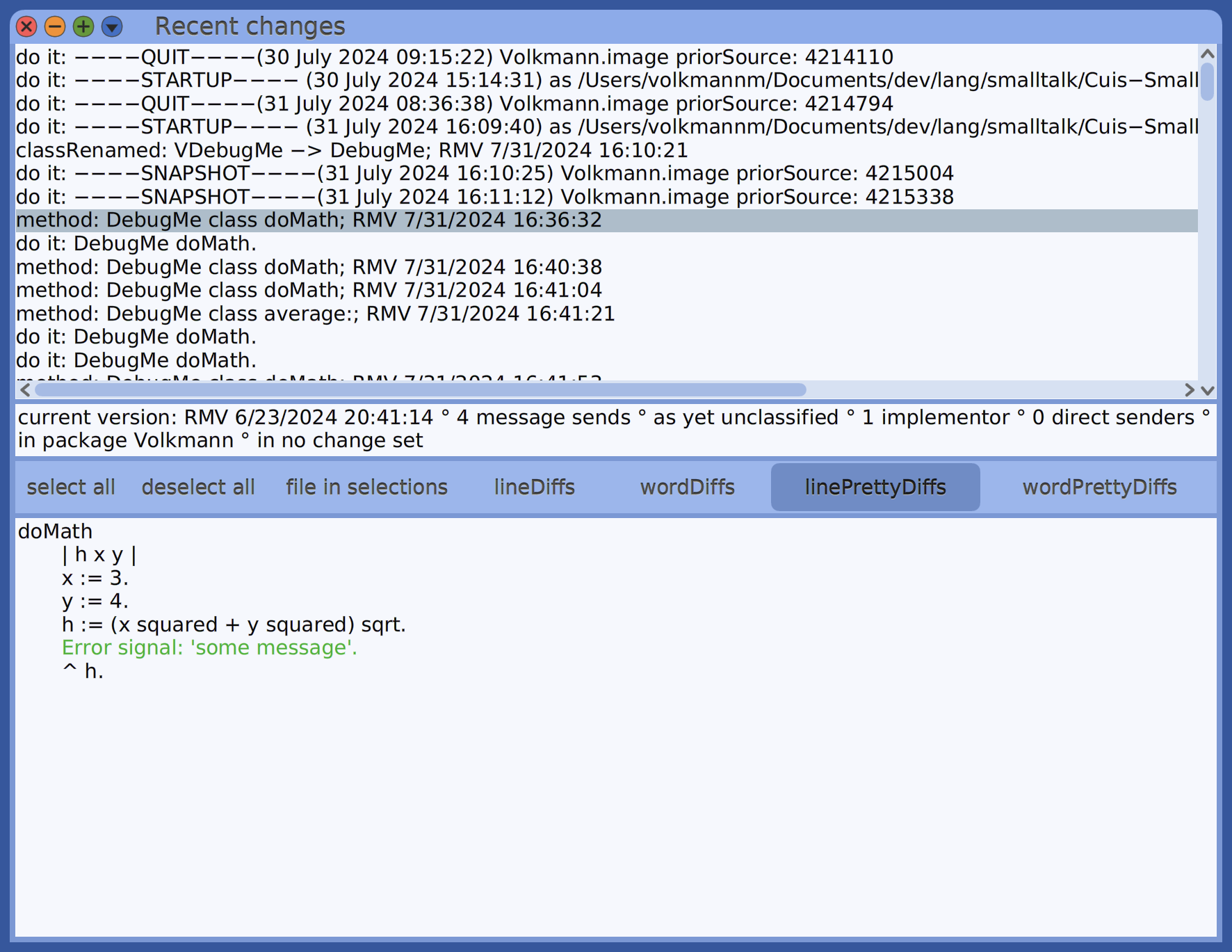
- In the “Recent changes” window that appears, click a row in the top panel to see the associated changes. They are ordered from the earliest to the most recent change.
- Right-click in the top pane to get a menu containing many options for filtering the list of changes. For example, “select new methods” will select all the changes that add a new method.
- Click one of the buttons ending in “Diffs” to view the changes in various ways. These include “lineDiffs”, “wordDiffs”, “linePrettyDiffs”, and “wordPrettyDiffs”. The “Pretty” options compare the old and new code after formatting each. The “linePrettyDiffs” seems to be the most useful.
- For each change to be restored, right-click the row in the top panel and select “fileIn selections”. Alternatively, click the “select all” button and then the “fileIn selections” button to restore all the changes.
TODO: When are unrestored changes deleted, if ever?
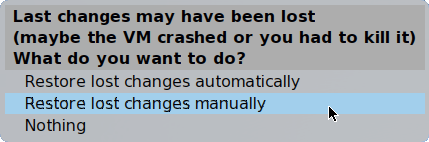
There is a option (disabled by default) to be automatically prompted to restore logged changes when the image is started. To enable it, enter the following in a Workspace and “Do it”:
Preferences at: #checkLostChangesOnStartUp put: true
With this enabled, if the VM crashes before changes are saved, it will display the following popup when restarted:
TODO: This DOES NOT WORK in macOS!
For more detail, see The Change Log.