Overview
Most software developers spend some amount of time in terminal windows entering commands in their favorite shell, be it bash, zsh, fish, nushell, or something else.
If this describes you, perhaps there are things you can do to improve the experience. Read on for some suggestions.
Custom Shell Prompts
Shell prompts can provide lots of contextual information about the environment in which the next command will be run. This might include answers to questions like:
- What directory am I in?
- What shell am I using?
- Am I in a directory of a git repository?
- If so, what branch am I on?
Starship is a highly customizable tool for customizing shell prompts. It works in nearly all shells including Bash, Fish, Nushell, Powershell, and Zsh. This removes the need to customize the prompt in multiple, shell-specific ways.
Starship is configured in one place for all shells, which is great for developers that utilize multiple shells.
To install Starship, see the instructions at Starship Installation.
In macOS it can be installed using the Homebrew command brew install starship.
To use Starship with zsh, add the following line in ~/.zshrc:
eval "$(starship init zsh)"
Configure Starship by creating the file ~/.config/starship.toml.
My configuration is shown below.
Note the use of unicode characters and
detailed information about the state of git repositories.
format = "$shell$custom$git_branch$git_status$directory$character "
# Displays text, typically a single character,
# based on the status of the previous command.
[character]
success_symbol = "[▶](green)" # normal prompt
error_symbol = "[✗](bold red)" # used if previous command failed
# Displays current directory.
[directory]
format = "[$path]($style)"
style = "yellow"
truncate_to_repo = false
truncation_length = 3 # parent directories to show; default is 3
truncation_symbol = "…/"
# Displays current Git branch when in a directory of a Git repository.
[git_branch]
format = "[$symbol ](green)[$branch ]($style)"
style = "italic green"
symbol = ""
# Displays status of Git repository when in a directory of a Git repository.
[git_status]
format = "[$all_status$ahead_behind]($style)"
ahead = "⇡ $count "
behind = "⇣ $count "
deleted = "🗑 $count "
diverged = " $count "
stashed = "📦 $count "
modified = "פֿ $count "
staged = '[ $count ](green)'
renamed = " $count "
untracked = "🤷 $count "
style = "bold red"
[shell]
disabled = false
bash_indicator = "🚀"
fish_indicator = "🐠"
nu_indicator = "🦀"
zsh_indicator = "🧙"
Here is a example of the Starship prompt configured above.

This shows the following in order:
- The current shell is zsh (based in the emoji shown).
- The directory is inside a Git repository (based on the git emoji).
- We are on the “main” branch.
- One file was deleted (trash can emoji).
- One file was modified (pencil emoji).
- One file is untracked (shrugging person emoji).
- We are in the directory …/SwiftUI/WeatherKitDemo/WeatherKitDemo.
For more detail, see my Starship blog page.
Managing Multiple Sessions
For each operating system there are several applications to choose from that support interaction with shell sessions. Many support simultaneous shell sessions running in multiple windows, tabs, and panes.
You likely find yourself working on multiple projects throughout the day. It is convenient to keep the terminal sessions related to each project in a separate window or in a separate tab of a single window. Each of these can contain multiple panes where separate terminal sessions are running. This allows you to focus on a task at hand by switching to a specific window or tab.
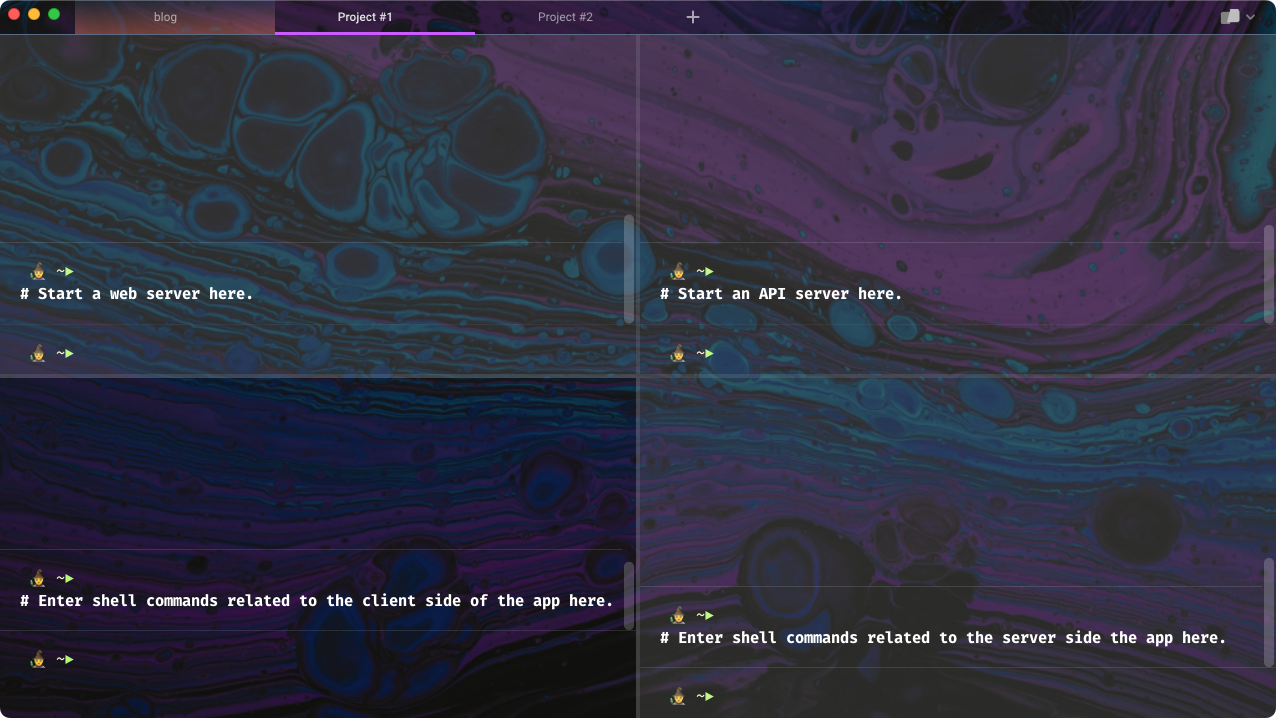
For example, perhaps you are editing your blog and working on two projects. Create a separate tab for each of these whose names are “blog” and the project names. Inside each tab create multiple panes by splitting the initial pane horizontally, vertically, or both. In the panes of a project tab you can run a web server, an API server, and a database server. Other panes can be used for executing shell commands.
In macOS some of the options for applications that manage terminal sessions include Warp, iTerm2, tmux (typically run inside iTerm2), and Terminal (built-in macOS app).
The screenshot below shows a window with three tabs. The currently selected tab is “Project #1”. This tab contains four panes that each have a specific purpose.
Terminal Font
Everything looks better in a terminal that is configured to use a nice font.
Personal preference enters in here. I prefer a monospace font, meaning all characters have the same width. I also prefer fonts that support ligatures which Google describes as follows:
A ligature is a glyph that combines the shapes of certain sequences of characters into a new form that makes for a more harmonious reading experience.
For example, an exclamation point followed by an equal sign (meaning not equal) is replaced by an equal sign with a slash through it.
Here is some code in the Swift programming language that can
take advantage of ligatures for the character sequences -> and >=.
func max(n1: Double, n2: Double) -> Bool {
    n1 >= n2 ? n1 : n2
}
And here is the same code displayed with ligatures:

My current favorite monospace font that supports ligatures is FiraCode Nerd Font.
Your chosen terminal app should have a settings screen that enables specifying the font that it should use.
Change Directory
If your work involves switching between projects during a typical day
then you likely use the cd command quite a bit.
A great time saver is to define aliases in your shell configuration file
to quickly move to your most commonly used directories.
For example, if you use the zsh shell then you could
add the following in your ~/.zshrc file
export DOCUMENTS_DIR=$HOME/Documents

# This directory holds on the files related to my blog
# that is implemented using the Eleventy static site generator.
export BLOG_DIR=$DOCUMENTS_DIR/blog

# This directory contains subdirectories related to software development.
export DEV_DIR=$DOCUMENTS_DIR/dev

# This directory contains subdirectories for projects.
export PROJECTS_DIR=$DOCUMENTS_DIR/projects

# This directory contains subdirectories for documentation and code examples
# in various programming languages.
export LANG_DIR=$DEV_DIR/lang

# This directory contains Swift documentation and code examples.
export SWIFT_DIR=$LANG_DIR/swift

alias cdblog="cd $BLOG_DIR"
alias cddev="cd $DEV_DIR"
alias cdjs="cd $JS_DIR"
alias cdprojects="cd $PROJECTS_DIR"
alias cdswift="cd $SWIFT_DIR"
Command-line Git
If you sometimes work with Git from the command-line, defining the following aliases and shell functions can make this easier. Use these when you are in or below the root directory of a git repository.
For the zsh shell the following can be added in your ~/.zshrc file.
# This lists all the local branches in the current git repository.
alias br="git branch"

# This prompts for a commit message to be entered using Vim.
# Diffs for all the modified files are displayed inside Vim
# so they can be verified and serve as the basis for a good commit message.
# After a message is entered and saved (:wq),
# this commits all the modified files.
alias ci="git commit -av"

# This creates a new branch off of the current branch
# with the name specified after `cob`.
# For example, `cob feature-compute-score`.
alias cob="git checkout -b"

# This checks out the branch specified after `co`.
# For example, `co feature-compute-score`.
alias co="git checkout"

# This lists all the commits on the current branch from newest to oldest.
# For each commit the SHA, author, date, and commit message are output.
alias log="git log"

# This deletes the local AND remote branches with a given name.
# For example, `rmb feature-compute-score`.
alias rmb="$HOME/bin/rmb" # a shell script defined below

# This outputs lists of all modified, deleted, and untracked files.
alias status="git status"

# This cd's up to the root directory of current git repository.
function cdgitroot() {
  cd `git rev-parse --git-dir`
  cd ..
}

# This pulls down the latest changes from the remote branch
# that corresponds to the current local branch.
function pull() {
  git pull origin $(git rev-parse --abbrev-ref HEAD)
}

# This pushes the latest changes on the current local branch
# up to the corresponding remote branch.
function push() {
  git push origin $(git rev-parse --abbrev-ref HEAD)
}
Here is the shell script rmb referenced above that
must be in a directory listed in the PATH environment variable.
#!/usr/bin/env bash
# Removes the local and remote git branches with a given name.

if [ $# -ne 1 ]; then
  echo usage: rmb {branch-name}
  exit 1
fi

git branch -d $1
git branch -rd origin/$1
Avoid Accidents
A deadline is looming and you are working as fast as possible to meet it. Your fingers are a blur as you crank out shell commands in a terminal. But you’re human and mistakes can creep in. Did you mean to copy over or delete that existing file? And has your backup process run since the last time that file that just disappeared was modified?
The cp (copy), mv (move), and rm (remove) commands can result in
loss of data if a file is accidentally replaced or deleted.
To avoid this, define the following aliases in your shell configuration file
(such as ~/.zshrc) that shadow those commands with aliases
that prompt for permission before overwriting or deleting a file.
This gives you a chance to consider whether you
really want to carry out a non-reversible action.
# Ask for confirmation before overwriting or deleting files.
alias cp="cp -i"
alias mv="mv -i"
alias rm="rm -i"
Search For Files
There are multiple ways to search for files in and below the current directory
that have a specific file extension and contain given text.
One way is to use the find command as follows:
find . -type f -name '*.js' | xargs grep 'some text'
# or
find . -type f -name '*.js' -exec grep 'some text' {} \;
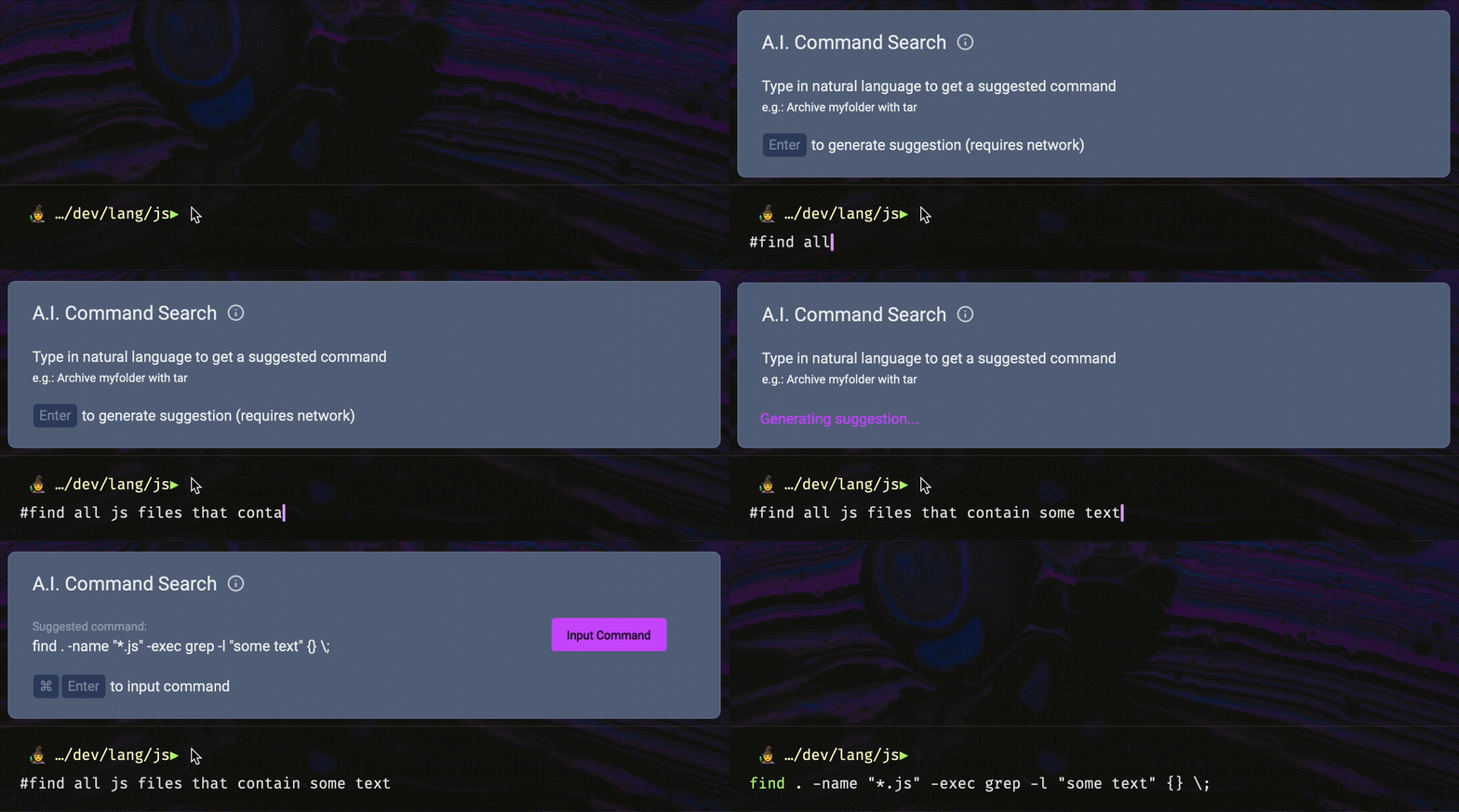
When using Warp,
its “A.I. Command Search” feature can be used to build the command.
Press the # key and enter a phrase like
“find all js files containing some text”.
This suggests the command
find . -name "*.js" -exec grep -l "some text" {} \;.
To accept the suggestion, press cmd-return to copy the command
into the input area and press return again to execute it.
The find command has several issues:
- The syntax is hard to remember.
- It is somewhat slow.
- The output doesn’t indicate the line numbers where matches were found.
- The output is not color-coded.
A better alternative is to use ripgrep.
This link contains installation instructions for Linux, macOS, and Windows.
In macOS it can be installed using the Homebrew command brew install ripgrep.
Ripgrep is implemented in Rust and is very fast.
The equivalent of the find commands above is rg --type=js 'some text'.
The paths to files that contain the text are displayed in purple. Matching line numbers are displayed in green. Text on the matching lines is displayed in white, except the matching text which is displayed in red. This is much better!
Command-line Editing
We can’t all be perfect when entering shell commands. Sometimes we need to edit what we have typed before executing a command. So it’s helpful to learn how to be productive in performing basic editing in your selected shell.
In many terminal programs, the following keyboard shortcuts can be used to move the cursor within a command being entered:
| Action | Shortcut Key |
|---|---|
| move to beginning of line | ctrl-a |
| move to end of line | ctrl-e |
| move back one word | meta-b |
| move forward one word | meta-f |
| move back one character | ctrl-b or left arrow |
| move forward one character | ctrl-f or right arrow |
| clear what has been entered | ctrl-u |
Most terminal programs do not support using a mouse or track pad to position the cursor by clicking within a command being entered. However, the Warp terminal behaves much more like a standard text editor. It supports positioning the cursor by clicking, selecting text with a mouse or trackpad, using cmd-c to copy, and using cmd-v to paste.
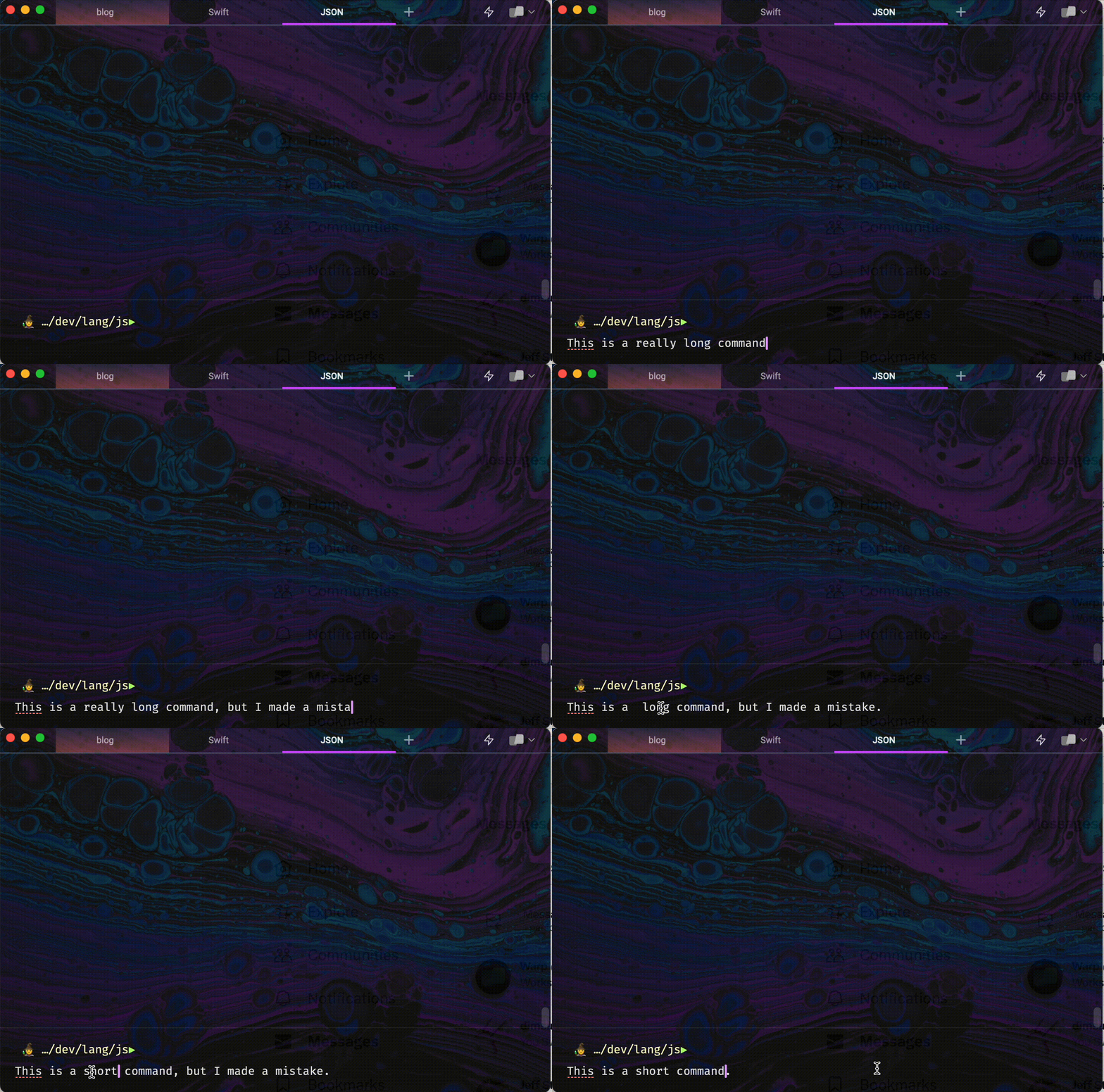
By default, Warp uses the following, easier to remember, keyboard shortcuts for moving the cursor.
| Action | Warp Shortcut Key |
|---|---|
| move to beginning of line | cmd-left-arrow |
| move to end of line | cmd-right-arrow |
| move back one word | option-left-arrow |
| move forward one word | option-right-arrow |
| move back one character | left arrow |
| move forward one character | right arrow |
| clear what has been entered | ctrl-c or ctrl-u |
Using JSON
JavaScript Object Notation (JSON) is a data format that is frequently used for data returned by API services and data in input files. Often all the data is on a single line with no added spaces to make the data as compact as possible. But this make it difficult for humans to read.
The tool jq helps with this and does much more. It is a command-line JSON processor that is implemented in C.
The basic functionality of jq is to pretty-print JSON data. But can also filter, sort, and transform JSON data.
In this example we get JSON data from an API endpoint and filter it to display all the varieties of the “hound” dog breed.
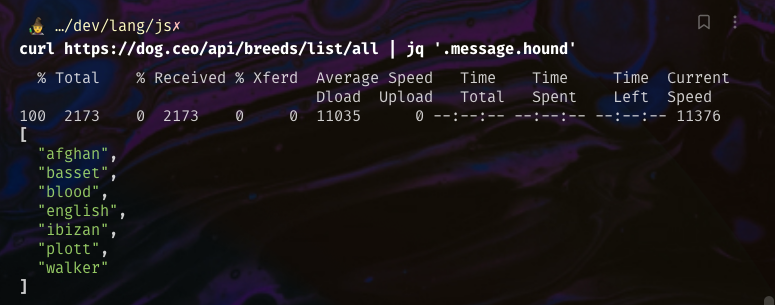
jq is practically a programming language. It has a long list of features including types, conditionals, regular expressions, math functions, custom function definitions, variables, streaming, and more.
For more information, see my jq blog page.
Command Output
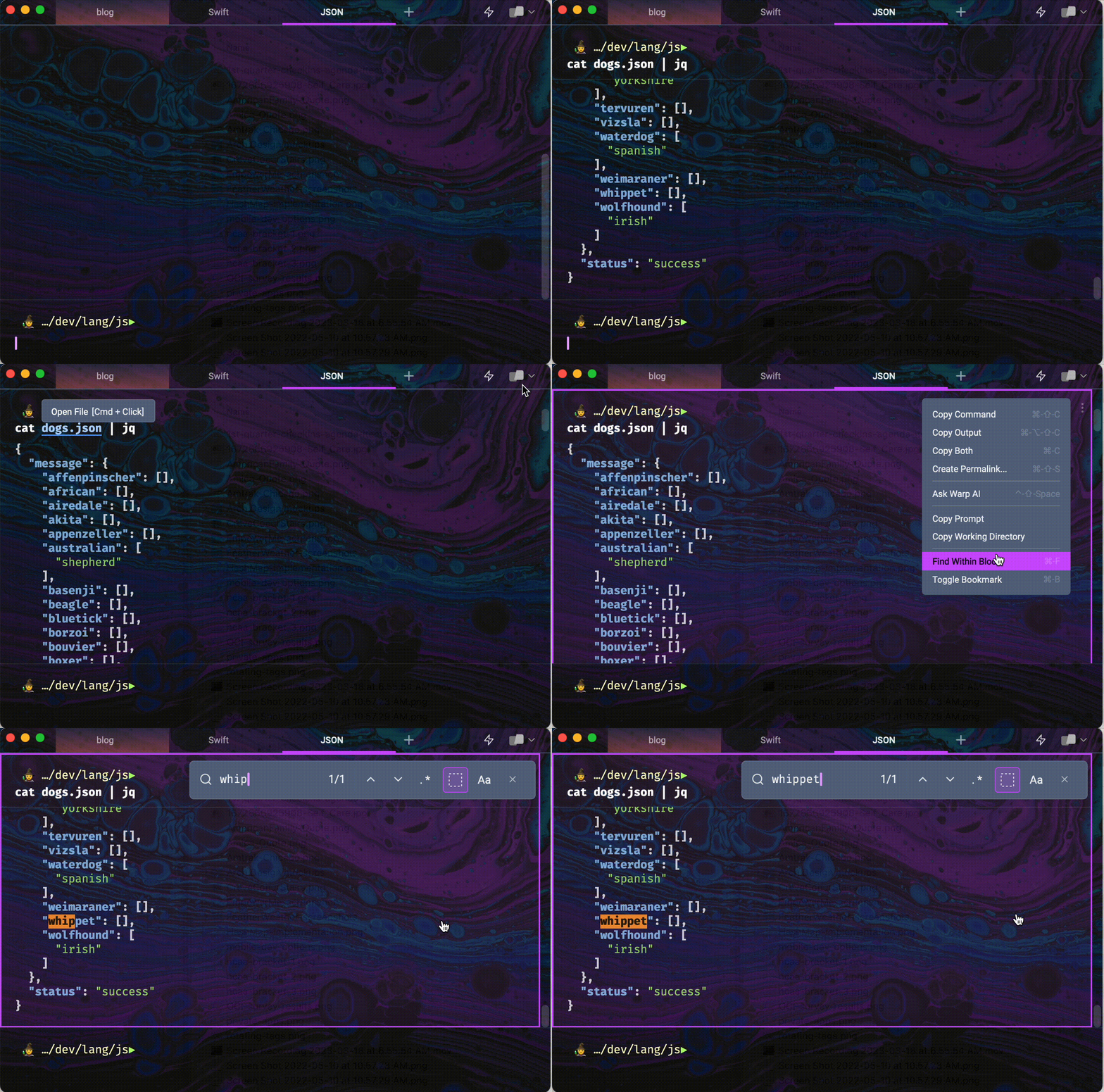
In most terminal apps commands that produce large amounts of output cause the command to scroll off the top of the pane where the command was entered. It is then no longer obvious what command produced the output and scrolling back to the command is a tedious process. In addition, there is typically no way to search the output of the last command without also searching the output of all the previous commands that were entered since the last time the terminal was cleared.
The Warp terminal solves all of these issues. The last command entered sticks to the top of the pane while its output scrolls below it. Clicking the command causes the output to scroll back to its first line. Both the command and its output are part of a “block”. There are many commands that can be executed on a block including “Find Within Block” and “Copy Output”.
Terminal-based File Editing
The ability to edit files within a terminal session is handy and efficient. An important use case for this is editing files that reside on another server that is accessed using SSH.
The Vim editor has the distinction of being the most common text editor that is available by default in terminal sessions.
Many software developers know a little bit about Vim and grudgingly use it when nothing else is available. You don’t need to be an expert in Vim or customize it in order to derive a lot of its benefits.
Even though some version of Vim is already installed in macOS and Linux environments, I recommend installing neovim which is a modern replacement for Vim. Click the “Install Now” button at the link above for installation instructions.
In macOS neovim can be installed using
the Homebrew command brew install neovim.
To run neovim in a terminal, enter nvim optionally followed by a file path.
For a summary of the minimal set of commands you need to know to be productive in Vim or neovim, see my Vim blog page. Especially see the section on netrw for managing multiple files in a single Vim session.
Perhaps you are a fan of VS Code and prefer to avoid using any flavor of Vim.
Enter vscode . in a terminal to launch VS Code use it to
edit any files in and below the current directory.
Kill Processes
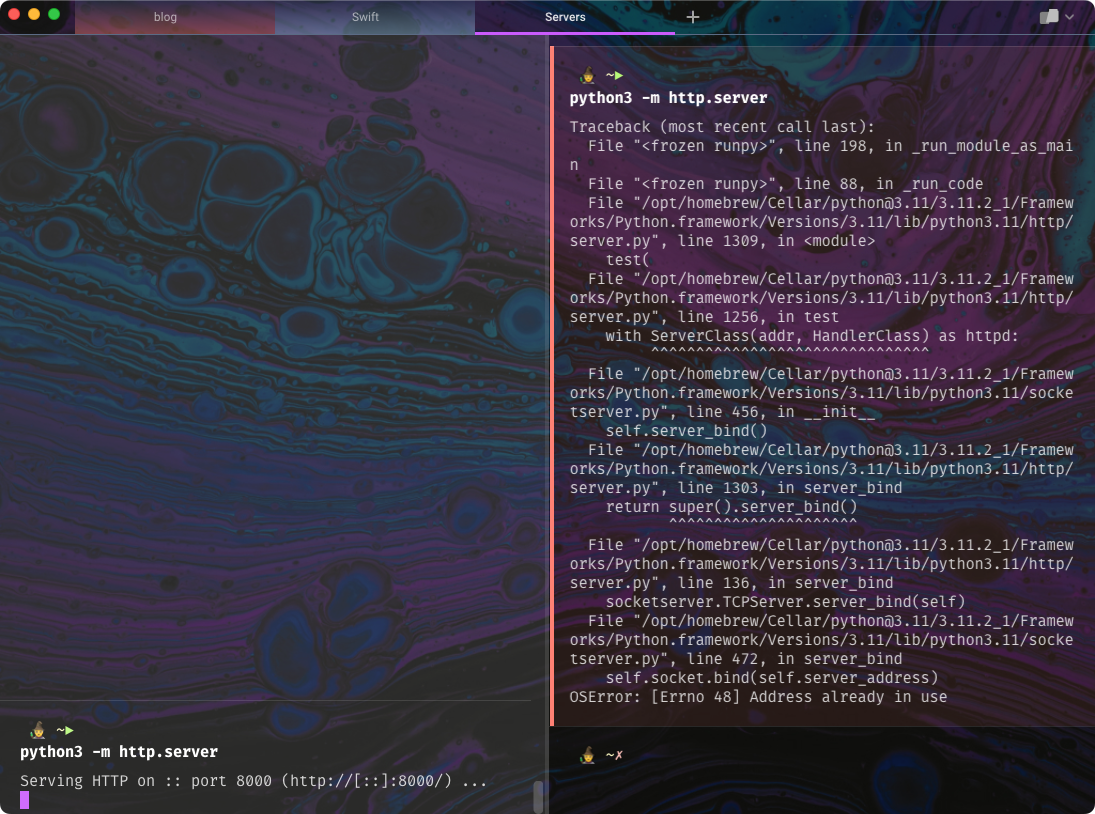
Here’s a common scenario. You attempt to start a server that listens on port 8000, but you get the error message “Something is already running on port 8000”. You currently have ten terminal sessions open in various windows and panes. If you could find the one what is running a server using port 8000 you could navigate to it and press ctrl-c to kill it. But finding it takes too long.
It would be much more convenient if you could enter a command
that would kill the process that is listening on a given port.
You can with klp 8000!
Define the following alias in your shell configuration file.
alias klp="kill-listening-process"
Ths script kill-listening-process will differ somewhat
based on the operating system.
For macOS it can be defined as follows:
#!/usr/bin/env bash
# This kills the process listening on a given port.

if [[ $# -ne 1 ]]; then
  echo usage: kill-listening-process {port}
  exit 1
fi

port=$1
pid=$(lsof -n -iTCP:$port -sTCP:LISTEN -t)

if [[ $pid ]]; then
  kill $pid
  echo killed process $pid
else
  echo no process is listening on port $port
fi
In the screenshot below we have started a server in the left pane and attempted to start another server in the right pane listening on the same port. Note the OSError message “Address already in use” at the bottom.
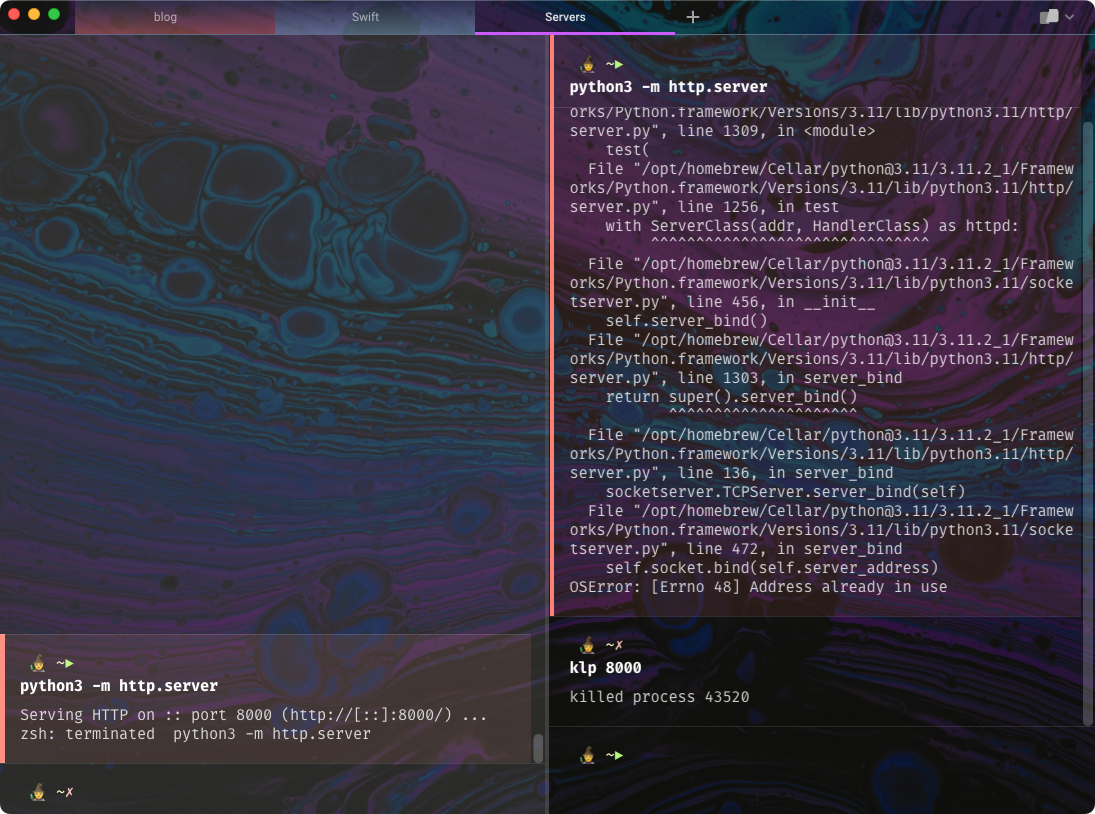
In the screenshot below we have used the klp alias
to kill the process that was listening on port 8000.
Note that the left pane reports that the server was “terminated”
and the right pane reports the id of the process that it killed.
Having Fun
The terminal is not just for work, it can also be fun. If you are a macOS user and you have Homebrew installed, try these.
-
asciiquarium
Enter
brew install asciiquariumfollowed byasciiquariumto fill your terminal with an animated aquarium made entirely of ASCII characters. Press ctrl-c to exit.
-
cmatrix
Enter
brew install cmatrixfollowed bycmatrixto fill your terminal with an animation from the movie “The Matrix”. Press ctrl-c to exit.
-
myman
Enter
brew install mymanfollowed bymymanto play a version of the game Pacman in the terminal. Press ctrl-c to exit.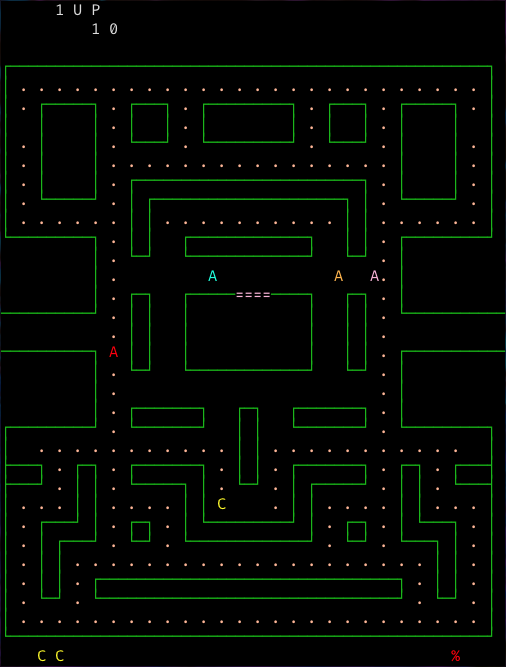
-
ninvaders
Enter
brew install ninvadersfollowed byninvadersto play a version of the game Space Invaders in the terminal. Press ctrl-c to exit.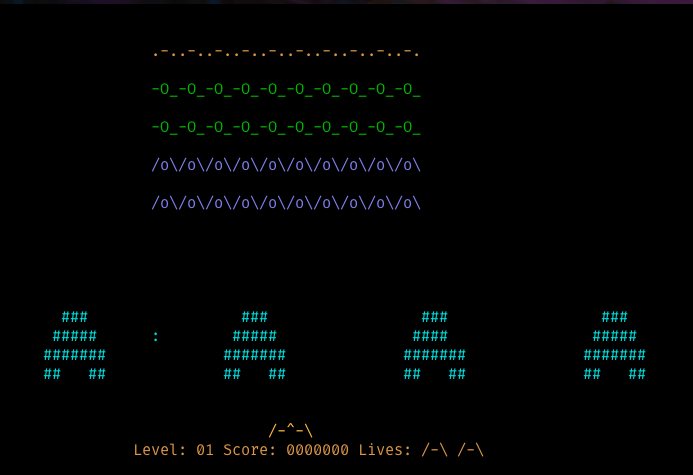
-
tetris
Enter
brew install samtay/tui/tetrisfollowed bytetristo play the game Tetris in the terminal. Press q to quit.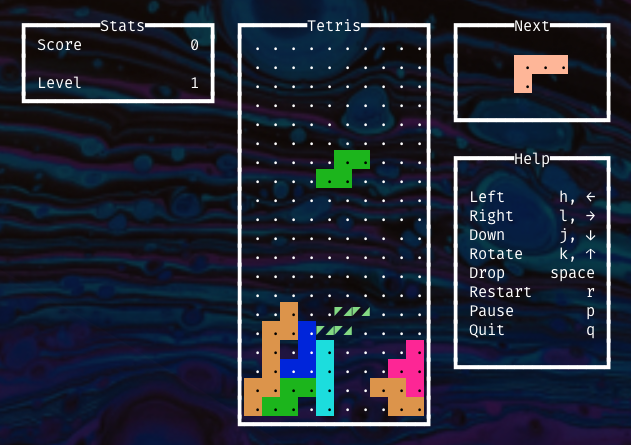
Wrap Up
That’s all the terminal tips that come to mind for me now. What did I miss? Email me your suggestions!