Overview
Alfred is a macOS app that provides a more powerful replacement for the built-in Spotlight app.
This is a free app, however many features are only available if the “PowerPack” is purchased. The extra features include:
- Contacts integration - shows contact information in a popup and supports interactions with the fields
- Clipboard History - stores multiple instances copied text and images for later reuse
- Music Mini Player - provides a quick way to select a song or album to play
- 1Password integration - logs into a website stored in 1Password
- Snippets - replace entered prefix and keyword characters with associated text
- Universal Actions - perform operations on a selected file other than opening
- Terminal/Shell - open directories in Terminal and execute shell commands
- Workflows - extend the capabilities of Alfred with scripts
Preferences
To configure Alfred, launch the “Alfred Preferences” app by clicking the menubar icon that looks like a bowler hat and select “Preferences…”.
Click “General” in the left nav. and do the following:
- Check “Launch Alfred at login”.
- In the “Where are you” dropdown, select your location.
- Click the “Request Permissions…” button
- Follow the instructions to make the required changes in System Preferences.
Opening
The Alfred search box can be opened by clicking the Alfred icon in the menu bar and selecting “Toggle Alfred” or by pressing a hotkey. By default, the hotkey is option-space. To modify this, open the Alfred preferences, select “General” in the left nav, click in the box after “Alfred Hotkey”, and press the desired key combination.
If you are comfortable using Alfred as a replacement for Spotlight, consider changing the hotkey to cmd-space which is the default hotkey for Spotlight. Before making this change, open System Preferences, select Spotlight, press the “Keyboard Shortcuts…” button, and uncheck “Show Spotlight search” which uses cmd-space.
Using
Enter text in the Alfred search box which can represent many things including files, directories, applications, and commands. A list of matches is displayed and filtered while typing. Each match has a keyboard shortcut (like cmd-3) that can be pressed to select the match. Alternatively, click the match or use the up and down arrows to move to a match and press the return key.
Recent selections automatically move to the top, anticipating that they will be the most desired.
To configure what is eligible to appear in the list of matches, open the Alfred preferences, select Features in the left nav, and select “Default Results. Here you can check options including “Preferences”, “Contacts”, “Folders”, “Documents”, “Text Files”, and “Images”.
Under “Search Scope”, verify that “macOS Applications folder” and “Folders in Home” are checked. Additional directories can also be specifiedG and many are included by default. Delete any that are not desired.
App Launching
To launch any Mac app, enter part of its name, select a match if there is more than one, and press the return key. This is great for apps that are not typically run all the time. Examples include Activity Monitor, App Store, Calculator, Calendar, Color Picker, Contacts, Dictionary, Disk Utility, FaceTime, Find My, Font Book, Messages, News, Notes, OmniGraffle, Photos, Podcasts, Reminders, Screenshot, SF Symbols (iOS developer tool), Siri, Stocks, System Information, Terminal, Time Machine, and TV.
Bookmarks
To enable searching browser bookmarks, open the Alfred preferences, select “Features” in the left nav, select “Web Bookmarks”, and check one or both of “Safari Bookmarks” and “Google Chrome Bookmarks”.
To search browser bookmarks and open a match, enter a part of the bookmark text.
Calculator
To perform a mathematical computation open the Alfred search box,
enter “=” followed by a mathematical expression.
Examples include “=sqrt(3^2 + 4^2)” and “=sin(45)”.
The result is displayed below the search box.
To place the result on the clipboard, press the return key. Then paste where the result is desired.
The supported functions are:
- sqrt
- abs, ceil, floor, round, trunc, rint (nearest integer)
- dtor (degrees to radians), rtod (radians to degrees)
- sin, cos, tan
- asin, acos, atan
- sinh, cosh, tanh
- asinh, acosh, atanh
- log, log2, ln, exp
- near ()
Clipboard History - PowerPack-only
To enable use of clipboard history, open Alfred, select “Features” in the left nav, select “Clipboard History”, and check “Keep Plain Text” and “Keep Images”.
Every time text or images are copied to the clipboard, they will be saved in the Alfred clipboard history. To view them, open the Alfred search input and type “clipboard” or press the hotkey which defaults to cmd-ctrl-option-c. (I changed this to cmd-shift-c to avoid conflicting with a keyboard shortcut in Xcode.) To paste a saved clipboard entry, click it or navigate to it with the up and down arrow keys and press return.
Contacts
Without the Powerpack, entering part of a contact name, selecting a match, and pressing the return key opens it in the Contacts app.
With the Powerpack, details of the matching contact are displayed in Alfred.
Select a field such as birthday, note, or phone number and pressing the return key copies it to the clipboard.
Select an email address and press the return key to compose a new email in the Mail app.
Select a physical address and press the return key to display it in Apple Maps.
Dictionary
To lookup the meaning of a word in the Dictionary app, enter “define {word}”.
To find the spelling of a word, enter “spell {guess}”.
File Preview
To open a preview of the selected file using “Quick Look”, press the shift key. To close the preview, press the shift key again or press the esc key.
If this doesn’t work, verify that it is enabled. In the Alfred preferences, select “Features” in the left nav, select “Previews”, and check the “Quick Look” and “Previews” checkboxes.
File Search
To search for a file by name and open it, enter “open {file-name}”.
Typically this is the same as just entering the file name.
To search for files containing certain text, enter “in {text}”.
To search for a file and reveal it in the Finder, enter “find {file-name}”.
Music - PowerPack-only
In the Alfred Preferences under Features … Music:
- “General” tab
- Change the keyword for launching the “Mini Player” from “itunes” to “music”.
- “Keywords” tab
- Check “Show these keywords in Alfred Default Results” so you can enter commands like “play”, “pause”, “next”, “previous”, and “mute”.
To play songs in the Music app, open the Alfred search box and enter “music”.
This will prompt for enabling access to the Music app mini player.
Once this is done, enter “music” and select “Show Music.app Mini Player”
where a song can be selected.
1Password Integration - PowerPack-only
To enable access to 1Password from Alfred:
- Open 1Password preferences, click the Advanced tab, and check “Enable integration with 3rd party apps”.
- Open Alfred, select “Features” in the left nav, select “1Password”, and check “Enable 1Password Bookmarks”.
This supports quickly opening a 1Password item and
logging into any site whose URL and credentials are stored in 1Password.
For example, enter “1p bank” in the Alfred search box
to login to the Bank of America website.
Snippets - PowerPack-only
A snippet is text identified by a keyword and an optional prefix (such as !). When the prefix and keyword are entered, they are replaced by the associated text.
To create snippets, open Alfred, select “Features” in the left nav, and select “Snippets”.
Create collections to hold groups of related snippets. Each collection has a name and can have “affix” characters that must be typed before snippet keyword in the collection. A common affix is a single exclamation point.
Create snippets inside the collections. Each snippet has a name, a keyword, and snippet (expansion text). Check “Auto expansion allowed” to allow the snippet to be used by simply typing the affix character(s) followed by the keyword. For example, I created a snippet named “full name” with the keyword “rmv”. Typing “!rmv” expands to “R. Mark Volkmann”.
Snippet text can include the following dynamic placeholders:
{clipboard}{cursor}- moves the cursor to this spot after expanding{date}{datetime}{time}
These can include a format specifier.
For example, {date.long} and {time -10m -30s:long}.
System Commands
Alfred supports many commands that act on the system including:
- emptytrash
- lock
- logout
- mute
- restart
- screensaver
- shutdown
- sleep
- trash - to view contents
System Preferences
To open the System Preferences app,
open the Alfred search box, enter “system p” and press the return key.
To open it on a specific pane, enter the
beginning of the pane name and press the return key.
For example, “disp” for the Display pane,
“keyb” for the Keyboard pane, and “gen” for the General pane.
Terminal - PowerPack-only
To run a command in a terminal window, enter “> {command}”
If the Terminal app is not running, it will be launched.
If it is already running, the command will run in the active Terminal window.
To use iTerm instead of the Terminal app in the “Open Terminal Here” action, see custom-alfred-iterm-scripts.
Timezones
The TimeZones-Alfred workflow enables quickly finding information about another location including current time, day of week, date, telephone prefix, timezone, and UTC offset.
To install this, click the “releases” link near the bottom of the page, click “TimeZones-v2.40.zip” to download it, and double-click the “TimeZones” file found in the Downloads directory.
To use this, open the Alfred search input and enter “tz {location}”.
For example, “tz london”.
Universal Actions on Apps - PowerPack-only
To open a list of actions that can be performed on a selected app, press the right arrow key.
Supported actions include “Recent documents”. With this selected, press the return key, navigate to a document or directory, and press the return key again to open the document/directory in the app. This is very useful for opening projects in VS Code or Xcode!
Universal Actions on Files - PowerPack-only
To open a list of actions that can be performed on a selected file, press the right arrow key.
Supported actions include:
- Add file to Buffer
- Browse Folder in Alfred
- Copy [with Replace] to…
- Copy File to Clipboard
- Copy Path to Clipboard
- Copy to…
- Delete
- Get Info
- Move [with Replace] to…
- Move to…
- Open
- Open Terminal Here
- Open with…
- Paste as Plain Text
- Reveal in Finder
The order in which these options appear can be configured to show the most recently used options first.
Web Searches
After opening the Alfred search box, try the following.
To search for help on Alfred, enter “help {search-term}”.
To perform a web search, enter “google {search-terms}”.
or “duck {search-terms}” (to use DuckDuckGo).
For example “google baseball cardinals”.
To find images, enter “images {search-terms}”.
For example “images giraffe”.
I changed this keyword to just “image”.
To view a map of a location using Google Maps enter “maps {location}”.
For example “maps london”.
I changed this keyword to just “map”.
To open Gmail, enter “gmail” optionally followed by a search query.
To open Google Drive, enter “drive” optionally followed by a search query.
To open Twitter, enter “twitter” optionally followed by a search query.
To search Wikipedia, enter “wiki {search-term}”.
To search Amazon, enter “amazon {search-term}”.
To search IMDB, enter “imdb {search-term}”.
To search YouTube, enter “youtube {search-term}”.
To translate a phrase enter “translate {phrase}”.
For example “translate nice to meet you”.
This will open a Google Translate page where
you can select the source and target languages.
Custom Web Searches
To define custom web searches, open the Alfred preferences, select “Features” in the left nav, select “Web Search”, and click the “Add Custom Search” button in the lower-right. Enter all the data in the form including a Search URL, Title, and Keyword.
To define a custom web search for the Mozilla Developer Network that is triggered by entering “mdn {query}”, copy the following text and paste it in the Alfred search box:
alfred://customsearch/Mozilla%20Developer%20Network%20Search/mdn/utf8/plus/https://developer.mozilla.org/en-US/search?q={query}
Workflows - PowerPack-only
Workflows extend the capabilities of Alfred. They are implemented in a scripting language such as AppleScript, bash, JavaScript, Perl, php, Python, Ruby, and zsh. You can write your own or use workflows implemented by others.
Two sources of free Alfred workflows are Packal and Alfred Workflows.
Some recommended workflows include:
-
After installing, enter “
init emoji” to complete installation. Progress will be displayed. After installation completes, enter “e {name}” to search for an emoji. Select one and press return key to copy to clipboard.This is alternative to pressing the globe (fn) key to open the emoji picker … which seems better than using this workflow.
-
This searches GitHub repositories, their files, issues, and more. I couldn’t get this to work. See this issue.
-
This kills the process with a specified name.
-
This enables quickly finding information about a location including current time, day of week, date, telephone prefix, tiomezone, and UTC offset.
Custom Workflows - PowerPack-only
Let’s walk through an example of creating a custom workflow. This can be used to delete the process that is listening on a given port. In the end we want to create the workflow diagram shown below.
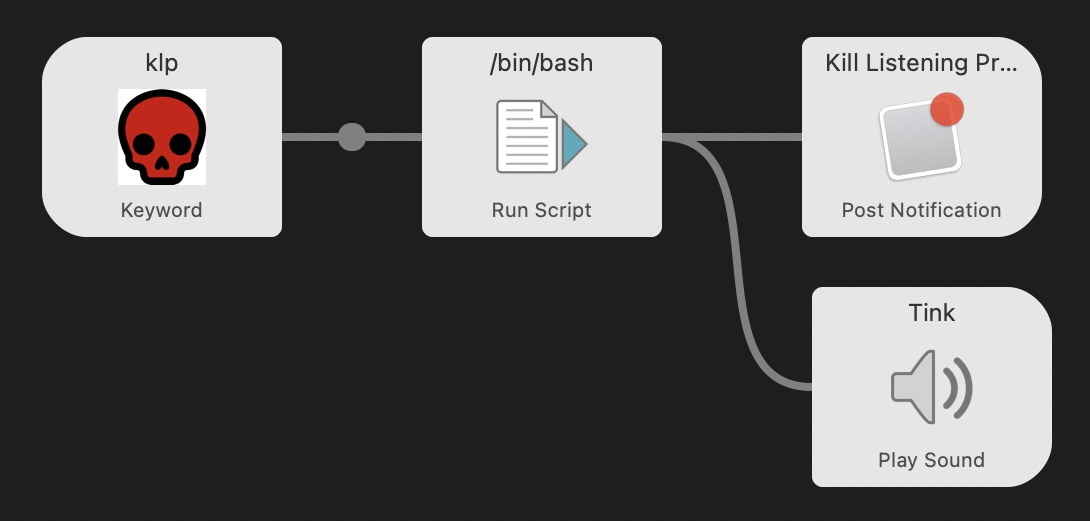
The steps to create this workflow are:
-
Open the Alfred Preferences.
-
Select “Workflows” in the left nav.
-
Click the ”+” button at the bottom.
-
Select “Blank Workflow”.
-
In the dialog that appears, enter a name and description. For example, “Kill Listening Process” and “kills the process listening on a given port number”.
-
Optionally drag an image file to the “Drop workflow icon above” box.
-
Click the “Create” button.
-
Right-click on the workflow canvas and select Inputs … Keyword.
-
In the dialog that appears, enter a keyword will be used to trigger the workflow. For example, “klp”.
-
Select between “Argument Required”, “Argument Optional”, and “No Argument”.
-
Enter a title. For example, “Kill Listening Process”.
-
Click the Save button.
-
Right-click on the workflow canvas and select Actions … Run Script.
-
In the dialog that appears, select a language such as
/bin/bash. -
If an argument is allowed, select how it will be accessed. The options are “with input as argv” (preferred for shell scripts) and “with input as {query}”.
-
Enter code for the script. For example, this script kills the process that is listening on a given port:
pid=$(lsof -n -iTCP:$1 -sTCP:LISTEN -t) if [[ $pid ]]; then kill $pid echo -n Process $pid was killed. else echo -n No process is listening on port $1. fi -
Click the Save button.
-
Drag a line from “Keyword” box to the “Run Script” box to connect them.
-
Right-click on the workflow canvas and select Outputs … Post Notification. This will display a notification dialog that displays the output of the script.
-
In the dialog that appears, enter a title (ex. “Kill Listening Process”) and text (ex. “{query}”).
-
Click the Save button.
-
Drag a line from “Run Script” box to the “Post Notification” box to connect them.
-
Right-click on the workflow canvas and select Outputs … Play Sound.
-
In the dialog that appears, select a sound (ex. Tink).
-
Click the Save button.
-
Drag a line from “Run Script” box to the “Play Sound” box to connect them.
-
An alternative way to create and connect an item is to click on the connector tab of the preceding item, select the type of item to create, and fill in the details. This automatically connects the new item to the preceding one.
To run this workflow, open the Alfred search box
and enter “klp {port-number}”.
A workflow can define any number of trigger items and associated workflows. Typically these are all related in some way.