Morphic colors are specified using the Color class.
Predefined Colors
There are many class methods that return predefined colors. The following predefined colors range from white to black:
white, veryVeryLightGray, veryLightGray, lightGray, gray,
darkGray, veryDarkGray, veryVeryDarkGray, and black
The following predefined colors are in the rainbow:
red, orange, yellow, green, cyan, blue, magenta, and purple
The following predefined colors are lighter versions of those in the rainbow:
lightRed, lightOrange, lightYellow, lightGreen, lightCyan,
lightBlue, and lightMagenta (no `lightPurple’)
The following additional colors are predefined:
tan, lightBrown, brown, pink, and transparent
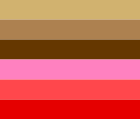
The image below shows the colors tan, lightBrown, brown, pink, lightRed and red in that order to get a sense of how they differ.
Custom Colors
To create a color from RGB values,
send the #r:g:b: message to the Color class.
The arguments are floating point numbers between zero and one.
For example, the following creates the CSS color linen:
linen := Color r: 250 / 255 g: 240 / 255 b: 230 / 255
To create the same color with 50% transparency:
linen := Color r: 250 / 255 g: 240 / 255 b: 230 / 255 alpha: 0.5
To create the same color from a hex string:
linen := Color fromHexString: '#faf0e6'
To create the same color from hue, saturation, and brightness values (abbreviated as “v”):
linen := Color h: 30.0 s: 0.08 v: 0.98.
To get a random color, send the #random message to the Color class.
Color Variations
There are many Color instance methods in the “transformations” category
that return a new Color object that is a variation on a given color.
These include:
| Method | Description |
|---|---|
adjustBrightness: | adds to the V value (brightness) of the HSV representation, keeping the result between 0.005 and 1 |
adjustSaturation:brightness: | adds to the S and V values of the HSV representation, keeping both between 0.005 and 1 |
alpha: | creates a new TranslucentColor instance where its alpha is the specified value |
alphaMixed:with: | mixes a Color with another using percentages of red, green, blue, and alpha values |
blacker | sends alphaMised: 0.8333 with: Color black |
darker | sends adjustBrightness: -0.08 |
duller | sends adjustSaturation: -0.03 brightness: -0.2 |
lighter | sends adjustSaturation: -0.03 brightness: 0.08 |
mixed:with: | mixes a Color with another using percentages of red, green, and blue values (alpha is unchanged) |
muchDarker | sends alphaMixed: 0.5 with: `Color black` |
muchLigher | sends alphaMixed: 0.233 with: `Color white` |
negated | creates a new color where the R, G, and B values are all 1 minus their current value |
paler | sends adjustSaturation: -0.09 brightness: 0.09 |
quiteBlacker | sends alphaMixed: 0.8 with: `Color black` |
quiteWhiter | sends alphaMixed: 0.6 with: `Color white` |
slightlyDarker | sends adjustBrightness: -0.03 |
slightlyLighter | sends adjustSaturation: -0.01 brightness: 0.03 |
slightlyWhiter | sends alphaMixed: 0.85 with: Color white |
twiceDarker | sends adjustSaturation: 0.076 brightness: -0.15 |
twiceLighter | sends adjustSaturation: -0.06 brightness: 0.15 |
veryMuchDarker | sends alphaMixed: 0.25 with: `Color black` |
veryMuchLighter | sends alphaMixed: 0.07 with: `Color white` |
whiter | sends alphaMixed: 0.8333 with: Color white |
XKCD Colors
Cuis Smalltalk supports many sets of named colors. One of them is named “XKCD”, created by the author of the XKCD comics. The color names were selected through a Color Survey performed in 2010.
To install this color set, enter Feature require: 'XKCD-NamedColors'
in a Workspace and “Do it”.
Color Names Dictionaries
There are many Dictionary objects where the keys are Symbol color names
and the values are Color objects.
To change the colors associated with the instance variables of a Morph:
- Open the halo of the
Morph. - Click the blue Menu handle.
- Click the red push pin to keep the menu open.
- Click one of the instance variables that hold a
Colorobject such asborderColor,color,fillColor, orlineColor. - Select a color palette such as CSS3 (Web) Colors, Crayon Colors, NBSISCC Colors, XKCD Colors, or ColorMix Editor (opens a Color Editor dialog).
- Drag a color swatch from the dialog onto the swatch for “borderColor” or “color”.
- Close the color swatch dialog.
- Close the
Morphmenu.
The Color-Extras package adds the
class method colorNamesDict to the Color class.
This returns the color Dictionary that is considered to be the default.
To open a color palette that uses this Dictionary:
- Open the World menu.
- Select “New Morph…”.
- Select “User Interface…A - Dro…ColorPalette”.
- Move the mouse to where it should be dropped and click to drop it.
Themes
Themes were described in the “Getting Started” section.
The Theme class method category “icons” contains many methods
that return specific icons.
The Theme class method categories “colors”, “menu colors”,
“tool colors”, “widget colors” contain many methods
that return Color objects for specific uses.
The Theme class method category “other options” contains many methods
that return sizes for sizes, radius values, and Boolean flags.
ColorEditorPanel
A ColorEditorPanel is a subclass of DialogPanel
that is used to select a color from a cube of colors.
In menus this is referred to as the “ColorMix Editor”.
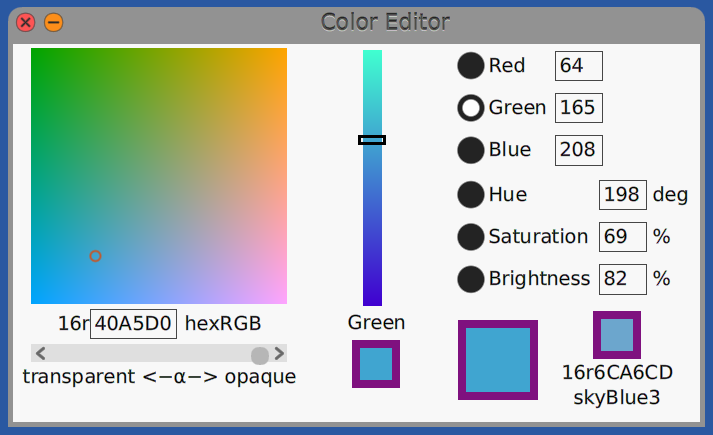
The vertical slider in the middle specifies the value of
a single color aspect such as green.
The square on the left specifies the value of
the other two color aspects such as red and blue.
You can think of the vertical slider in the middle
as specifying the z-coordinate within the cube and
the square on the left as specifying
the x and y coordinates within the cube.
For more detail, see the ColorPaneMorph class comment.
To install this:
- Clone the
Cuis-Smalltalk-UIGitHub repository into the same directory asCuis-Smalltalk-Dev. - Enter
Feature require: 'UI-Color-Panel'into a Workspace and “Do it”.
To open this, open the World menu and select New Morph… User Interface … A - Dro … ColorEditPanel.
To select a color:
- Click a radio button on the right to indicate which aspect of the color will be controlled by the vertical slider in the middle. The choices are Red, Green, Blue, Hue, Saturation, and Brightness.
- Drag the slider in the middle to select a value for the color aspect that corresponds to the selected radio button.
- Click a point in the square on the left.
- Drag the slider in the lower-left to select the level of transparency in the color.
- Optionally modify the numbers in the text inputs on the right.
The view the color aspect values of a color swatch from one of the color palettes (such as Crayon Colors):
-
Open a
ColorEditorPanel. -
Open the default color palette.
- Open the World menu.
- Select New Morph… User Interface … A - Dro … ColorPalette.
- Move the mouse cursor to where you would like to place it.
- Click to drop it.
-
Hover over a color swatch in the color palette to see its name in a tooltip.
-
Drag a color swatch from the color palette to the first or second swatch in the
ColorEditorPanel. -
Optionally modify the color within the
ColorEditorPanel.
To get additional menu options in the menu displayed by
opening a Morph halo and clicking the blue Menu handle,
enter Feature require: 'UI-MetaProperties in a Workspace and “Do it”.
The menu items with purple text all have special editors
that are opened by clicking the menu item.
To change the color associated with
any purple menu item that displays a color swatch,
drag a color swatch from any color palette onto it and drop it.
For example:
-
Create a
Morphwhose colors will be modified.For example, open the World menu, select “New Morph…”, and select Vector Graphics … A - Rec … CircleShapeMorph.
-
Open the halo of a
Morph. -
Click the blue Menu button near the top-left.
-
In the menu that appears, click the red pin so the menu remains open if you click outside it.
-
Click the menu item whose color is to be changed.
-
Select one of the available color palettes such as “Crayon Colors” or “ColorMixEditor”.
-
Drag one of the color swatches in the palette or ColorMixEditor to one of the menu items for an instance variable such as
borderColor,color,fillColor, orlineColor.Tooltips for each of the three color swatches in the ColorMix Editor describe their purpose. The left swatch uses the selected color with the selected alpha value. The center swatch uses the selected color without the selected alpha value. The right swatch uses the closest web color to the selected color.
-
Close the menu.