Overview
WeatherKit provides a variety of weather data for a given location including condition, temperature, humidity, precipitation, wind, and weather alerts. Usage is free for up to 500,000 calls per month and has a monthly cost beyond that.
WeatherKit requires iOS 16+.
Resources
- Meet WeatherKit WWDC 2022 video
- Introducing WeatherKit
- Swift Documentation
Setup
-
Browse developer.apple.com.
-
Click “Account” and sign in.
-
Under “Certificates, Identifiers & Profiles”, click “Identifiers”.
-
Click the ”+” after the heading “Identifiers”.
-
Select the “App IDs” radio button.
-
Click the “Continue” button.
-
Select “App”.
-
Click the “Continue” button.
-
Enter an app description.
-
Paste the app bundle ID.
-
Under “Capabilities”, check the checkbox for WeatherKit.
-
Click the “Continue” button.
-
Click the “App Services” tab.
-
Check the checkbox for WeatherKit.
-
Click the “Continue” button.
-
Click the “Register” button.
-
In Xcode, click the top entry in the Navigator.
-
For each target that will use WeatherKit.
- Select the target.
- Click the “Signing & Capabilities” tab.
- Click the ”+” in the upper-left.
- Verify that the correct Team is selected which is listed in the upper-right corner of the developer.apple.com web page.
- Find WeatherKit and double-click it.
It may be necessary to wait around 30 minutes for the WeatherKit service to be enabled for your app.
Sample Code
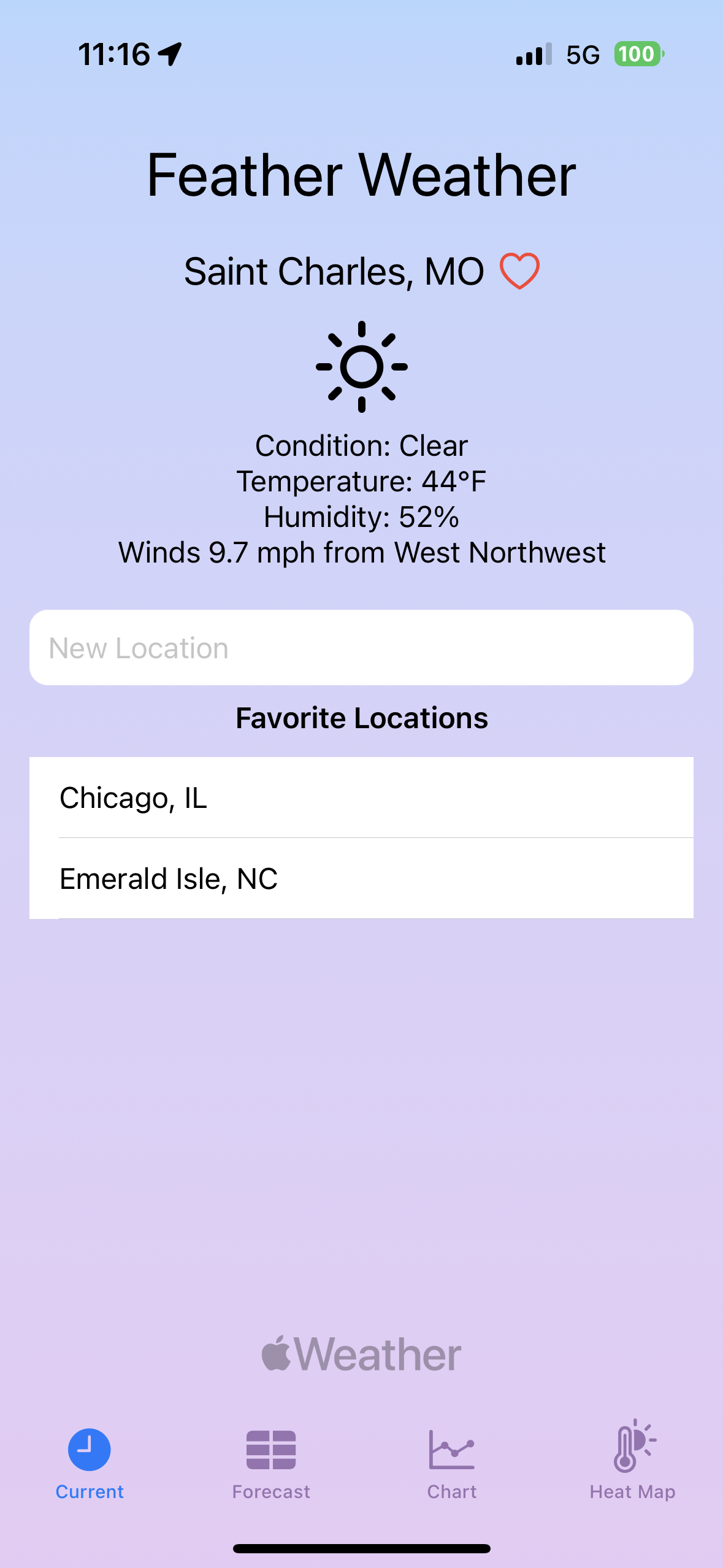
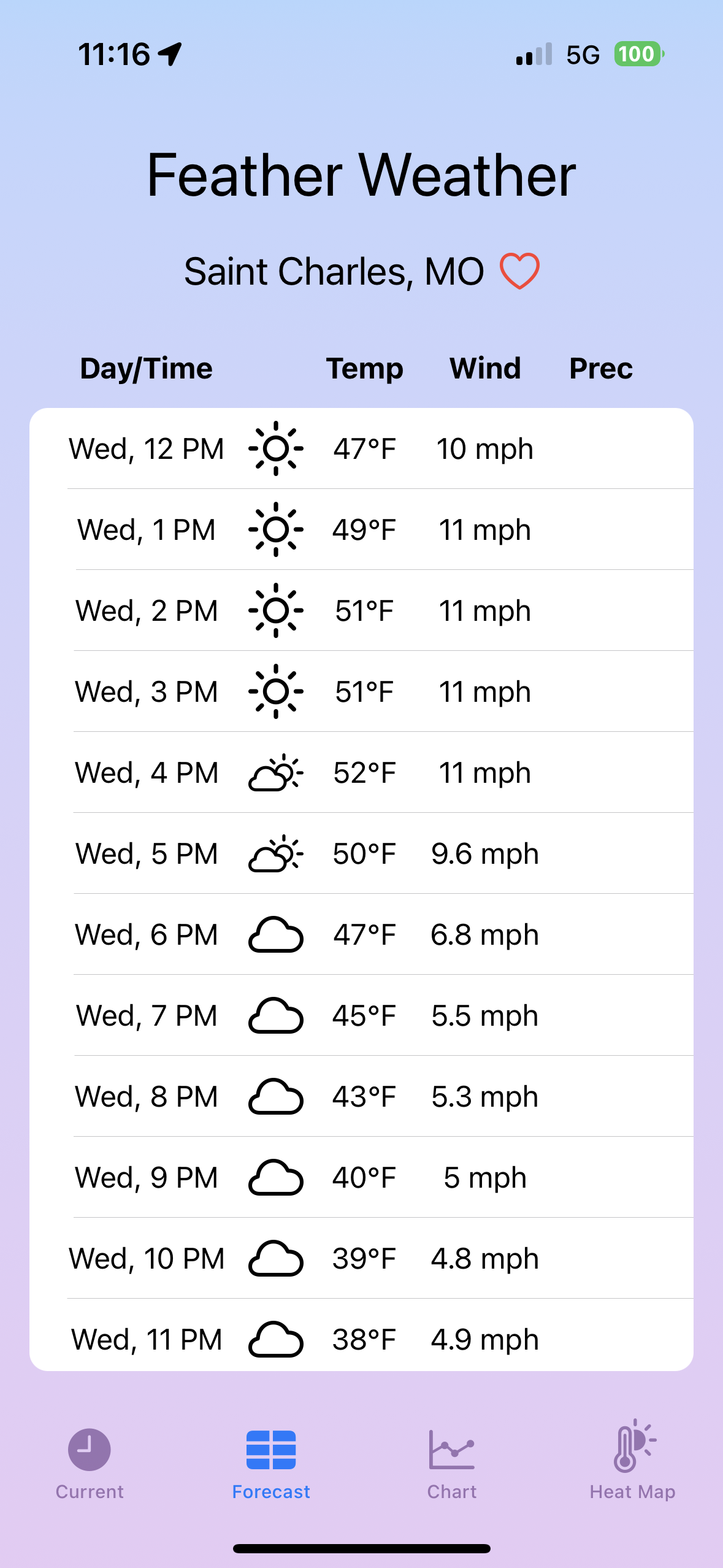
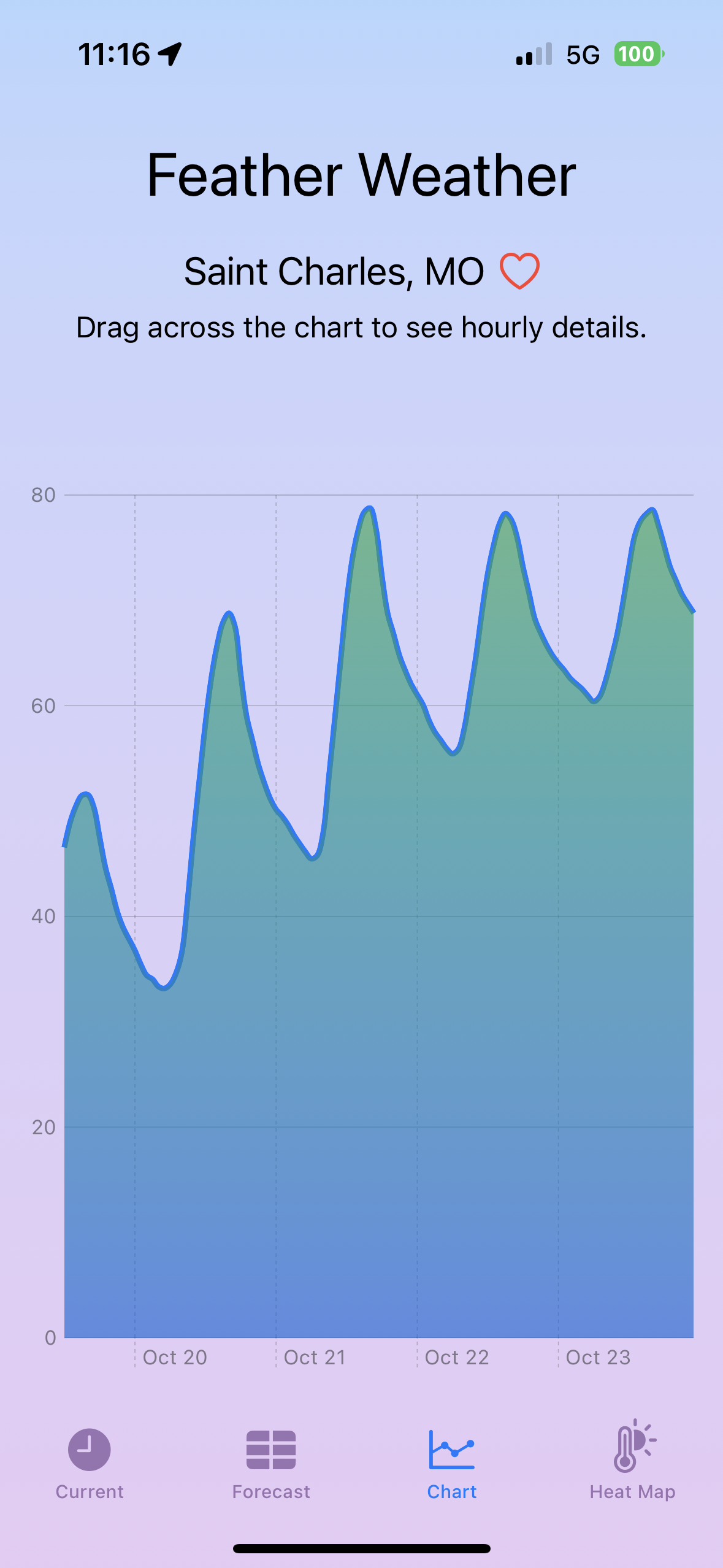
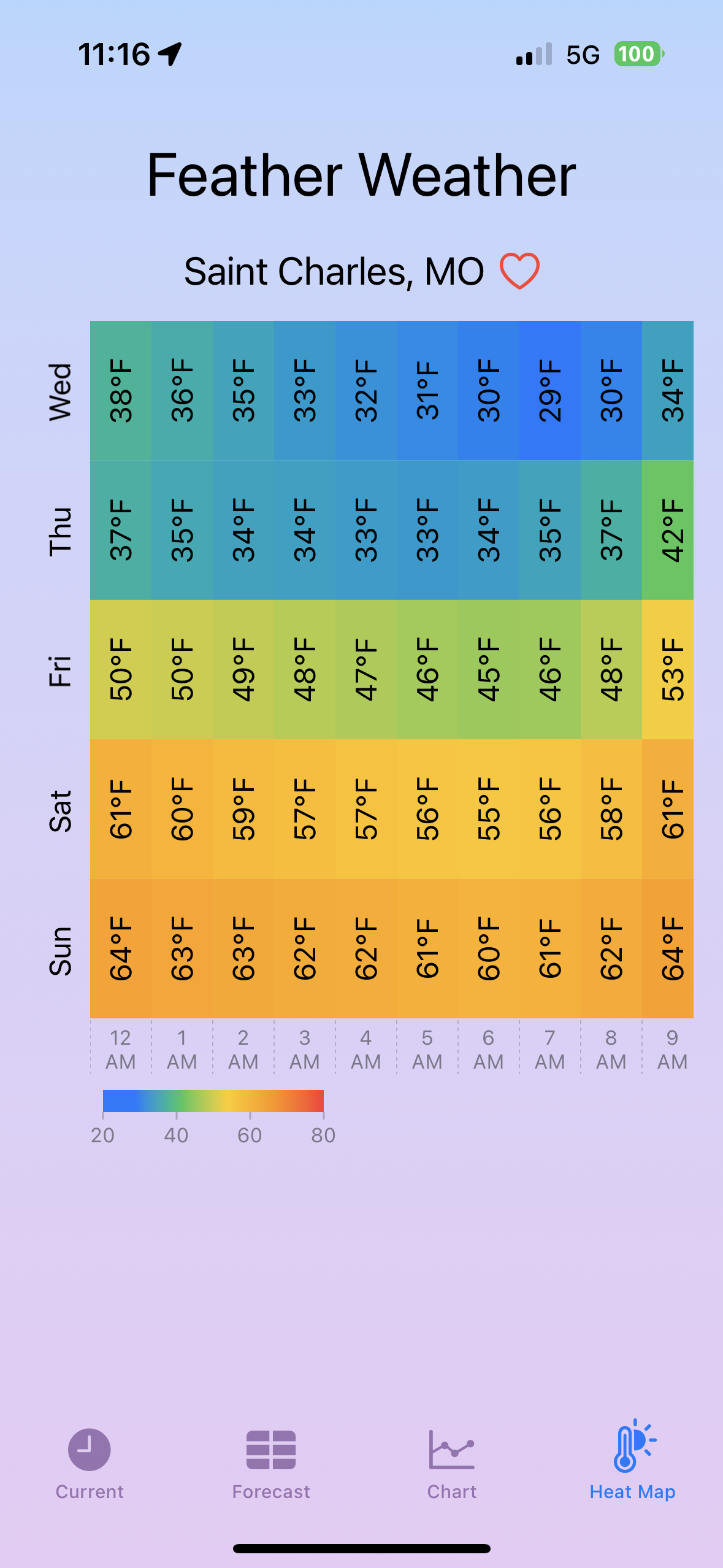
See the demo project WeatherKitDemo in GitHub. Here are screenshots from this app:
Temperature Conversion
To create a new Measurement<UnitTemperature> value from an existing one
using a different unit, call the converted method.
The existing object typically uses the locale-specific unit.
For example:
let celsius = temperature.converted(to: .celsius)
let fahrenheit = temperature.converted(to: .fahrenheit)
Limitations
Weather data cannot be retrieved in a preview or in the Simulator. A real device must be used.