Overview
GiftTrack is an iOS application for keeping track of gift ideas and purchased gifts for multiple people and multiple occasions throughout the year. Download it from the iOS App Store.
To use the app:
- Tap “People” and add people.
- Tap “Occasions” and add occasions.
- Tap “Gifts” and add gifts for specific people and occasions.
The app is free but is limited to tracking gifts for two people and two occasions. If you attempt to add more people or occasions, you will be prompted to make an in-app purchase which enables tracking gifts for an unlimited number of people and occasions.
Contact Information
To contact the developer of this application, send email to R. Mark Volkmann.
Deleting Data
To delete a person, occasion, or gift, swipe left to reveal a “Delete” button and tap it.
Moving and Copying Gifts
To move or copy a gift to a different person and/or occasion, tap the gift, tap the “Move” or “Copy” button, select the target person and occasion, and tap the “Move” or “Copy” button again.
Customizing Colors and Start Screen
To change the background and title colors, tap “Settings”, tap one of the color circles, and select a new color. If the contrast between the background and title colors is too low, a message will be displayed asking you to select different colors.
If the colors are not customized, switching the phone between light and dark mode in the Settings app changes the colors used in the app. But if the colors have been customized on the app Settings screen, the app will use the selected colors regardless of whether the phone is in light or dark mode.
When the app is launched, the “About” tab is selected by default. To change the screen that is selected initially, tap “Settings” and select a different value for “Start Screen”. The “Gifts” screen is recommended since it is the screen with which you will interact most frequently.
To reset the colors back to the defaults and reset the start screen to its default values, tap “Settings” and tap the “Reset” button.
Gift Details
The amount of detail that can be entered for each gift is up to you.
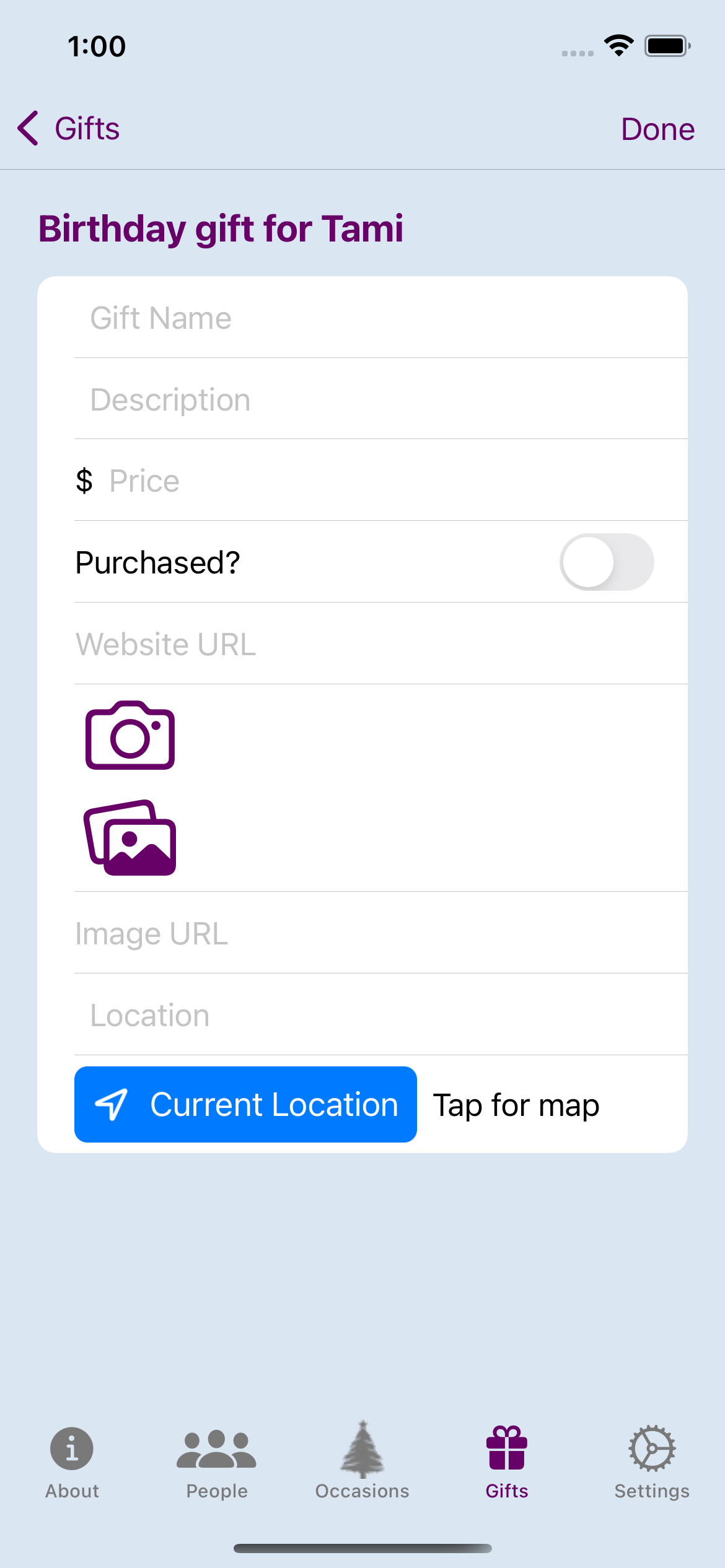
Here’s a list of the information that can be entered for a gift. All but the gift name are optional.
- Gift Name
- Description
- Price in U.S. dollars
- Purchased? - This indicates whether the gift is merely an idea or has already been purchased.
- Website URL - This is an address of a web page that describes the gift.
- Photo - This is a photo of the gift, taken with your phone camera or found in your photo library.
- Image URL - This is a web address of a photo of the gift.
- Location - This is a description of where the gift can be found. For gifts that have not yet been purchased, this could be the name of a store where the gift can be purchased. For gifts that have been purchased, this could be a location in your home where the gift has been hidden.
- Map - This is a map that shows where the gift can be purchased.