Overview
Feather Weather Forecasts is an attractive, free application for viewing weather forecasts obtained from the Apple WeatherKit API. It runs on iPhones, iPads, and Mac computers. Download it from the iOS or Mac App Store.
This app was originally created in order to learn about WeatherKit. It was then expanded to use Swift Charts. Once it became a useful app and not just a learning exercise, it was submitted to the App Store.
Tap the buttons at the bottom of the screen to switch between the four weather forecast views “Current”, “Forecast”, “Chart”, and “Heat Map” which are described below.
The app currently supports five languages: English, Chinese (Simplified), Hindi, Spanish, and French.
When a new version of the app is available, an “Update Available” link will appear on the initial screen. Tapping this will open the App Store where the new version can be installed.
After each version of the app has been used for some time, determined by all the screens being visited multiple times, a dialog will appear for rating the app.
Contact Information
To contact the developer of this application, send email to R. Mark Volkmann. Suggestions for new features are welcome!
Current Screen
The “Current” screen displays the current weather conditions for the selected location which defaults to your current location.
While the weather forecast is being retrieved, the following animated progress indicator is displayed.
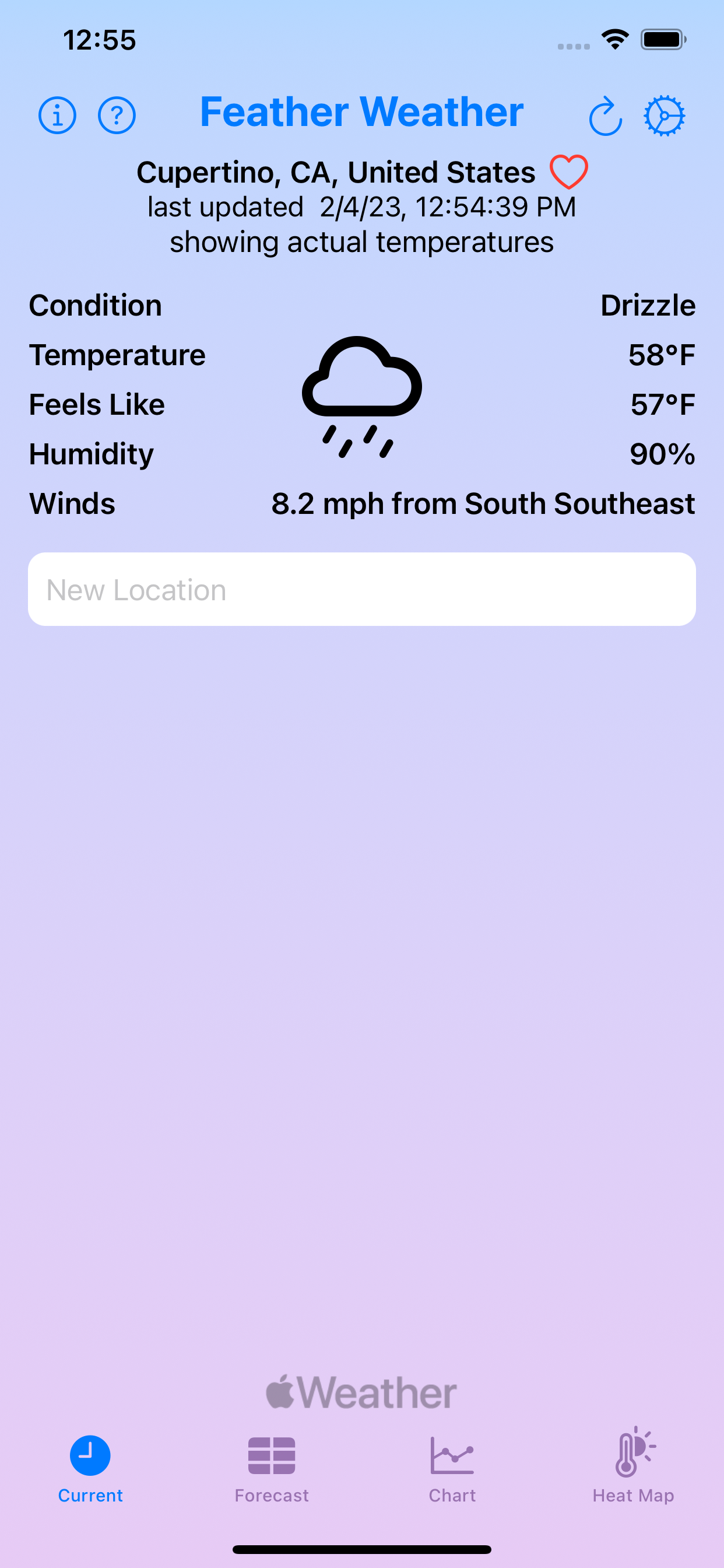
After the weather forecast has been retrieved, the current conditions are displayed. The switch under the city name can be toggled between displaying temperatures in Celsius and Fahrenheit.
To see the weather forecast for a city other than your current city, enter a city name in the “New Location” text field.
To save the current city in your list of favorite cities for each recall, tap the hollow red heart after the city name. This changes it to a solid red heart and adds the city to the list below the text field. Tap a city name in the list to see its weather forecast.
Forecast Screen
The forecast screen displays the hourly weather forecast over the next five days. Drag your finger down and up on the list to move through the hours forward and backward.
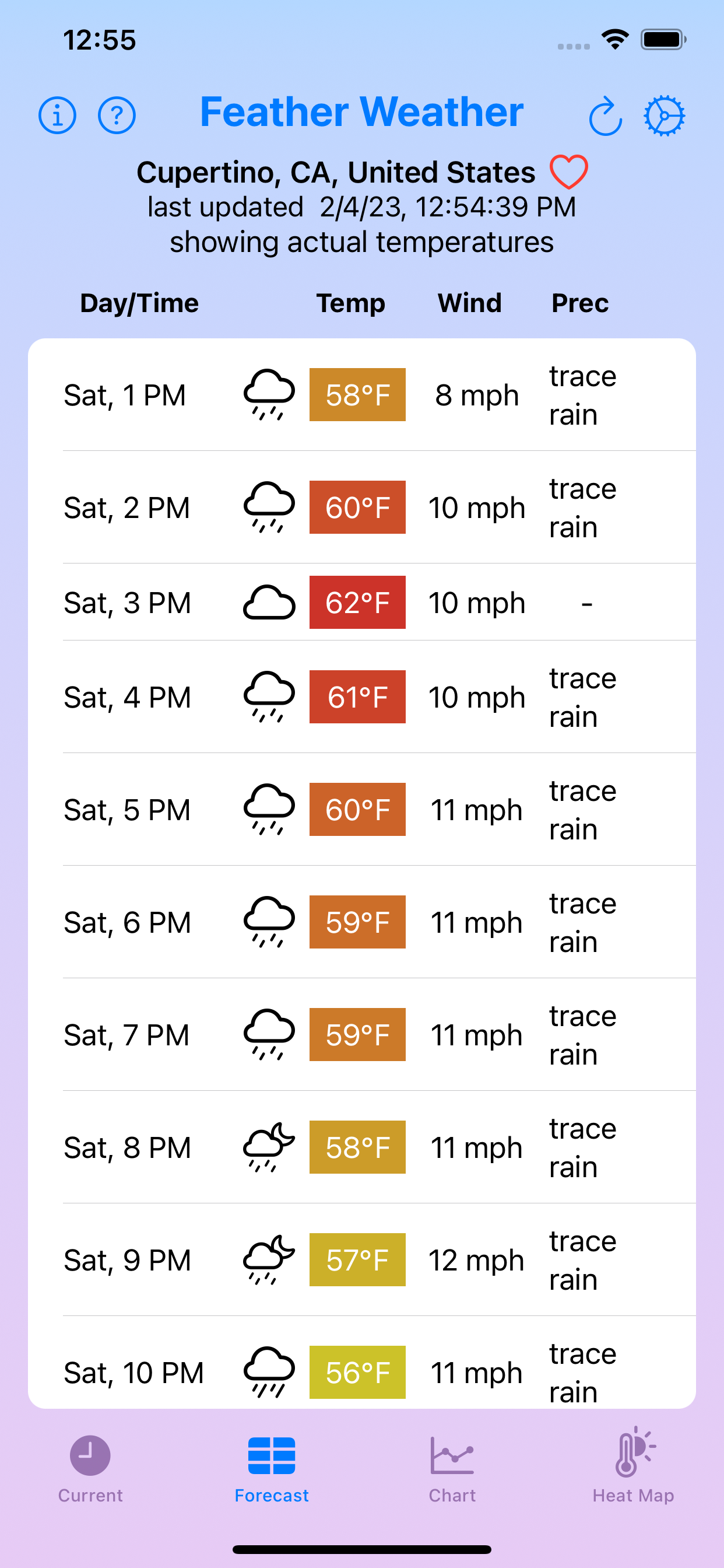
Chart Screen
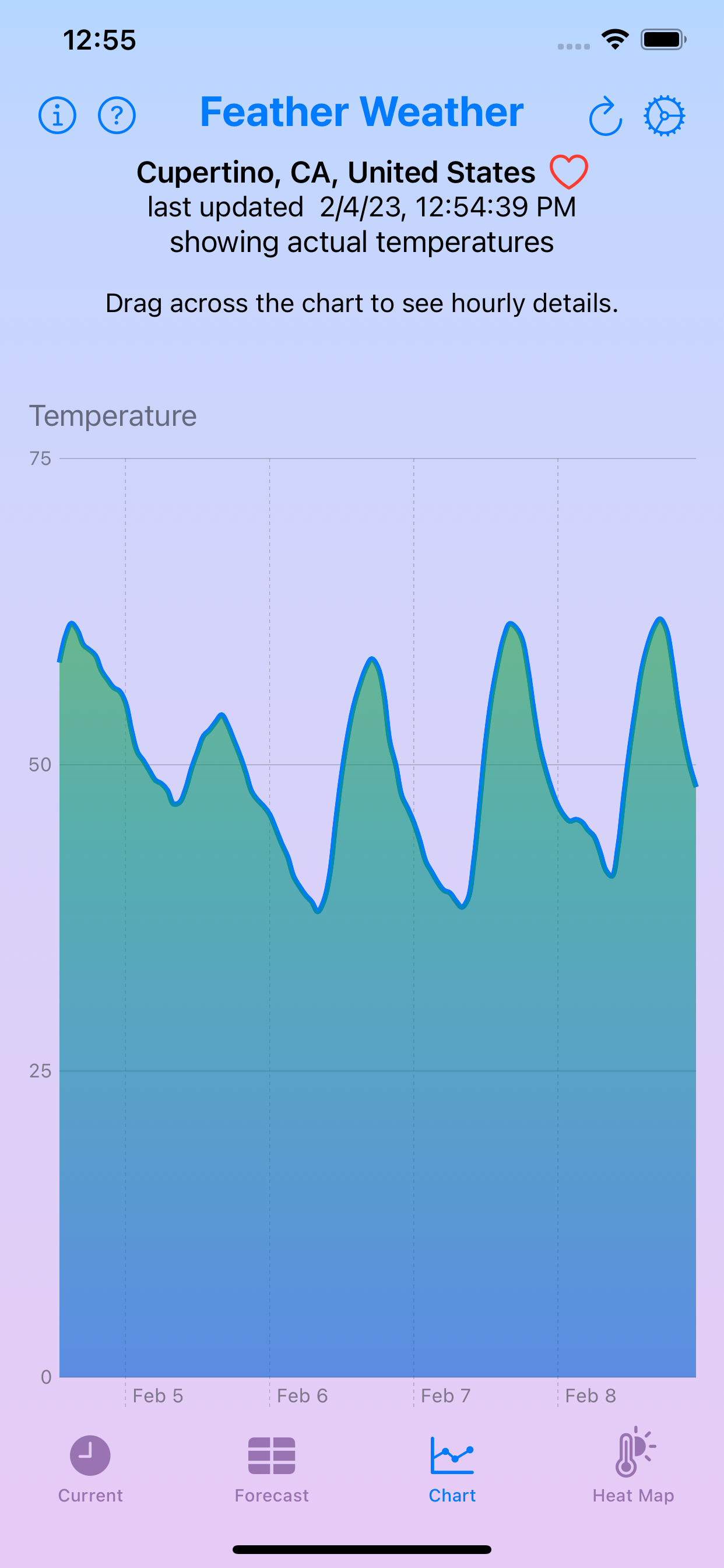
The “Chart” screen displays an area chart that shows the hourly forecasted temperatures over the next one to five days. The number of days defaults to five, but can be changed in the Settings sheet described later. This enables seeing a glance how the temperature is forecasted to change. Drag your finger right and left over the chart to see an annotation that indicates the day, hour, and temperature under your finger.
Heat Map Screen
The “Heat Map” screen displays a heat map that enables seeing at a glance when it will be the warmest and coldest over the next five days. The bottom row provides temperature forecasts for today from midnight this morning to midnight tonight. The rows above the bottom row provide temperature forecasts for the next four days.
Drag your finger right and left over the heat map to scroll forward and backward through the hours in the next five days.
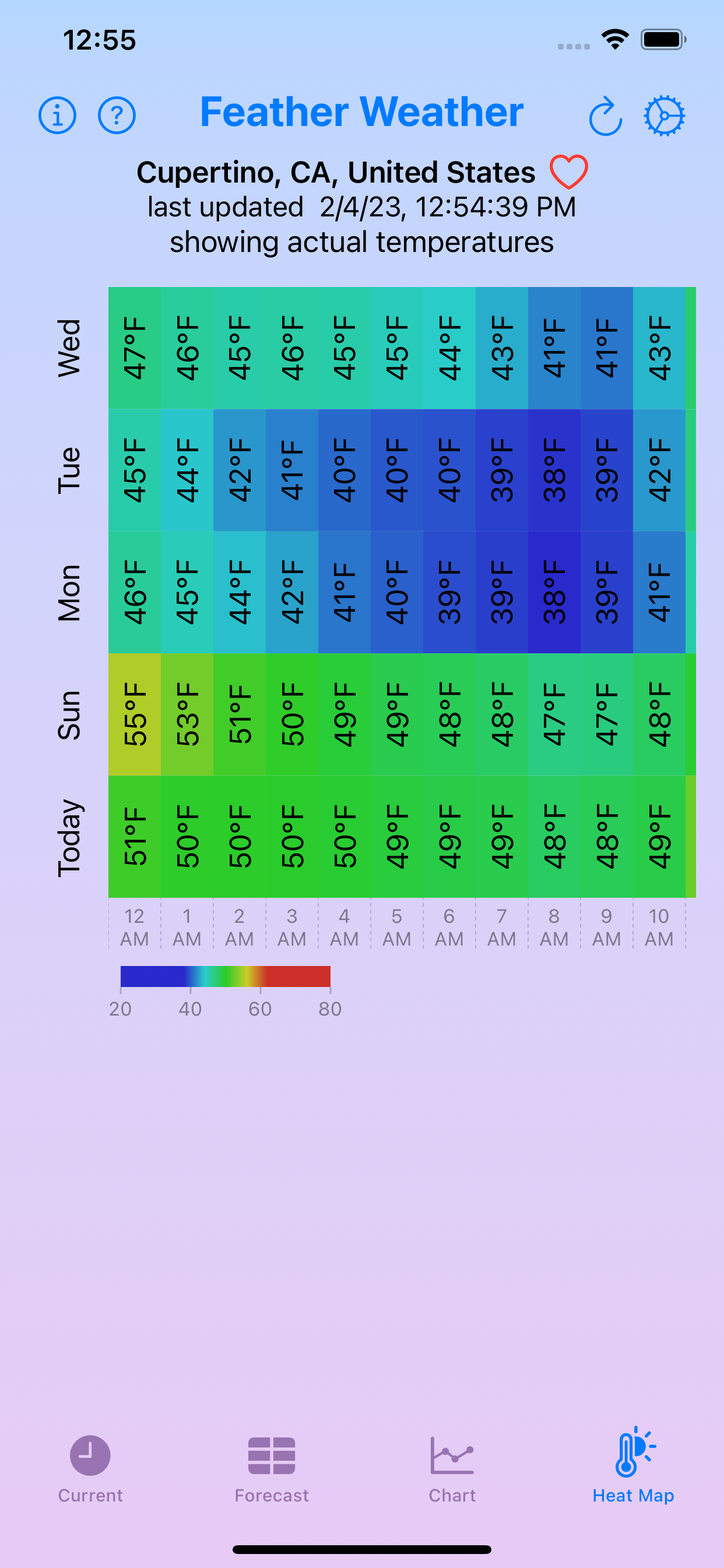
See the Settings screen described below for an option to change the orientation of the heat map.
The “Colors” switch can be set to “Relative” or “Absolute”.
In Relative mode the color blue represents the lowest temperature over the next five days and the color red represents the highest temperature over the next next five days. All temperatures between those extremes are assigned a color of the rainbow between blue and red that represents the percentage that temperature is between the low and high.
In Absolute mode the color blue represents zero degrees Fahrenheit or less and the color red represents 100 degrees Fahrenheit or more. All temperatures between those extremes are assigned a color of the rainbow between blue and red that represents the percentage that temperature is between the zero and 100.
Navigation Bar
The same navigation bar appears at the top of all screens. This contains:
- an info button to get brief information about the app
- a help button to display the app help page in Safari
- the app name
- a refresh button that fetches updated weather data for the currently selected location
- a settings button that opens a sheet containing settings options described below
Settings Sheet
Tapping the gear icon in the upper-right displays the following settings sheet.
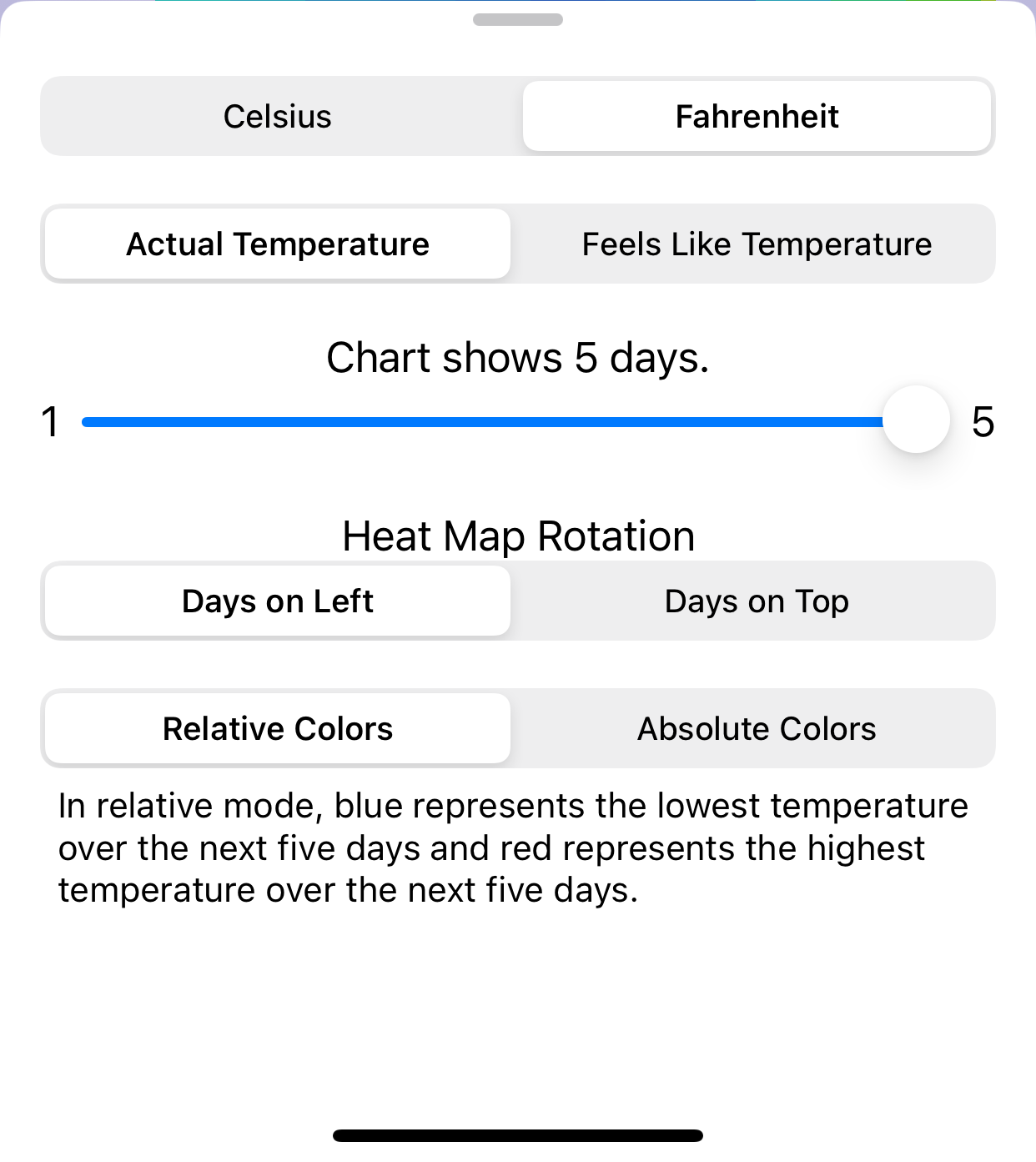
The first setting chooses between reporting temperatures in Celsius and Fahrenheit. This defaults to Celsius for all users except those in the United States.
The second setting chooses between displaying actual temperatures and “feels like” temperatures. The current setting is indicated at the top of every screen with the text “showing {kind} temperatures”. This defaults to showing actual temperatures.
The third setting determines the number of days of forecasted temperatures that are displayed on the Chart screen. This defaults to five, but can be set to any number from one to five.
The fourth setting chooses between displaying days in the heat map screen on the left or top. When the days are displayed on the left, the rows represent days and the columns represent hours of the day. When the days are displayed on the top, the columns represent days and the rows represent hours of the day.
The fifth setting chooses between using relative colors and absolute colors to describe temperatures on the Forecast and Heat Map screens. In absolute mode, blue represents zero degrees Fahrenheit or less and red represents 100 degrees Fahrenheit more. In relative mode, blue represents the lowest temperature over the next five days and red represents the highest temperature over the next five days.”; All temperatures between those extremes will be assigned a color between blue and red in the rainbow. This defaults to showing relative colors.
When finished viewing and modifying the settings, swipe the sheet down to close it.